menu
MobalyticsUse your favourite features in-game with our Desktop App
Gamebase Guide

Aion 2 Best Settings: Graphics, Targeting and Keybinds

Guides
Aion 2
Updated on Oct 7, 2026
Oct 7, 2026

Overview

Our Aion 2 best settings recommendations focus on making combat easier to follow, improving targeting and reducing the visual clutter that can affect performance in busy areas.

In this guide, we will cover useful keybinds, combat options and graphics changes, along with a few camera settings to make playing more comfortable. Use these as a starting point and adjust them to suit your PC and preferred controls.

A huge thank you to Ulfhednar for his Aion 2 settings tips!


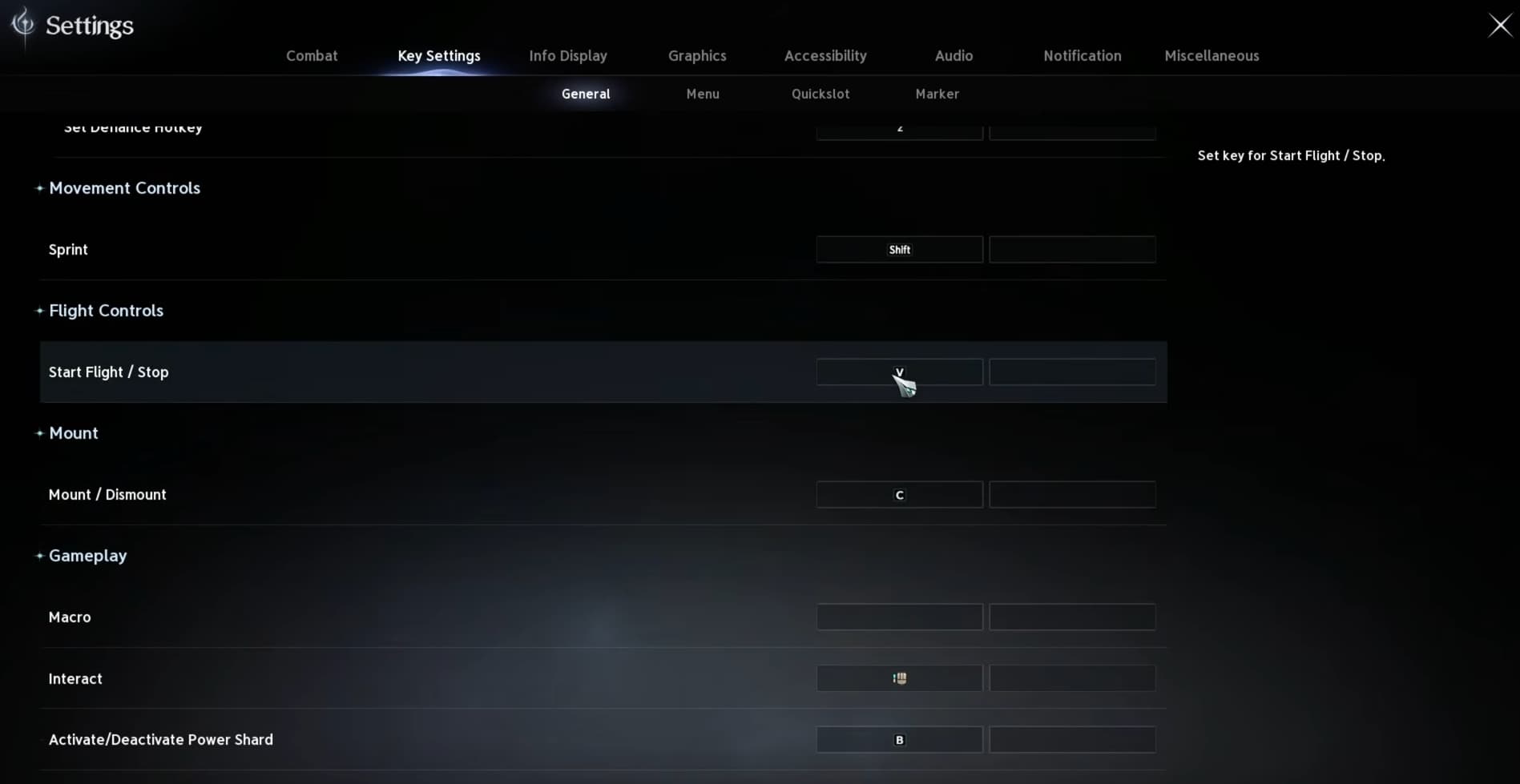
Set Up Your Flight and Combat Keybinds

Open Settings → Key Settings and put your most frequently used actions on keys you can reach comfortably.

  • Flying: Choose an easy key or side mouse button so you can access flight quickly.
  • Fly Up: Bind this separately to make climbing easier, particularly when collecting feathers or fighting in the Abyss.
  • Interact: Keep this close, as you will use it regularly while playing.
  • Crowd-control break: Put your escape skill somewhere you can press quickly when a boss or another player disables your character.
  • Combat macro: Right-click is an option if it suits your setup.

There is no need to copy someone else’s entire layout. Focus on the actions you use most, including your regular quick slots.

For help setting up a skill sequence, our Aion 2 beginner guide includes a combat macro example.

Adjust Your Targeting

Set Search Direction to Front of Camera so your targeting search follows where you are looking.

For PvP, move Hostile Players to the top of your targeting priority and put spirit related targets at the bottom. This helps you select an enemy player instead of a nearby monster or summon during a crowded fight.

For melee builds, try enabling the option to pursue targets when activating a skill. Your character will move after the target when you use an attack. Leave this disabled for ranged builds if you want to control your positioning yourself.

You can also disable Set Main Target on Right-Click Attack if you do not want right-click attacks to determine your main target.

Manage Combat Buffs and Screen Clutter

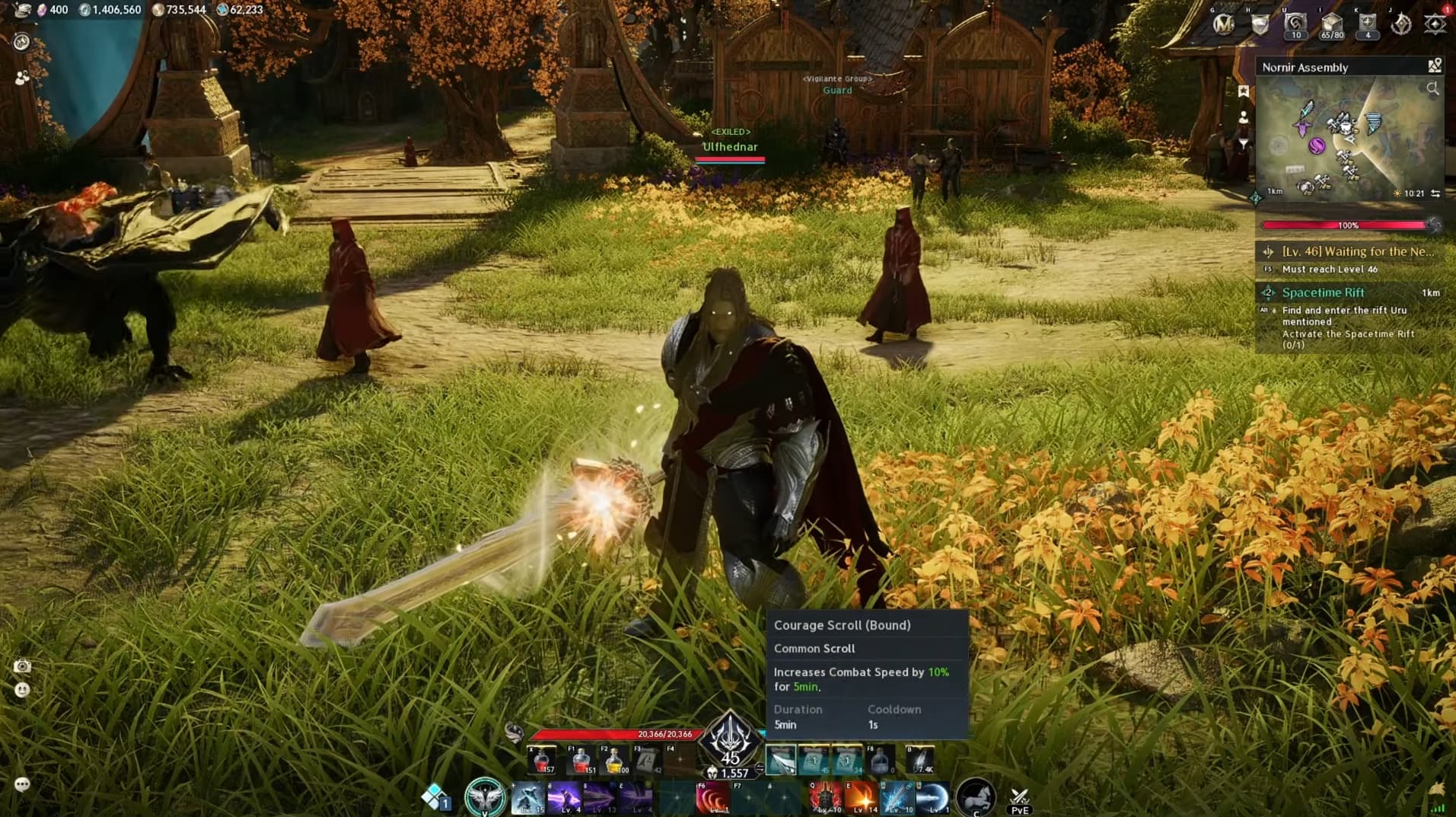
Set the automatic-use condition for buffs to In Combat to help avoid spending consumables unnecessarily.

Be aware that pressing left-click to attack can still trigger buff scrolls, even if you are only preparing to fight. This is particularly worth watching with melee controls.

In Info Display, consider hiding player nameplates, spirit names and nameplates, and pets. Reducing these extra elements can help with performance and make busy encounters easier to read.

Enable the boss orientation indicators if you want a clearer view of the boss’s front and back. They can help you position for attacks, although they may not appear on world bosses.

If floating combat numbers make it difficult to see what is happening, turn off Floater Display. This is a visibility preference, so keep it enabled if you find the feedback useful.

Lower Demanding Graphics Settings

Start by setting Effect Quality and Mass Combat Quality to their lowest options if you want to prioritize FPS.

For crowded Abyss battles, also try these changes:

  • Turn off the tier icons displayed above player names.
  • Enable Identical Player Appearance to reduce the variety of character appearances being displayed.

Keep the rest of your graphics settings at levels your PC can handle comfortably. You do not need to put everything on the highest preset, and the improvement from these changes will depend on your hardware and how busy the area is.

Make the Camera More Comfortable

Turn Camera Shake off for a steadier view during combat, and set Teleport Effect Color to Dark if you find the bright transition uncomfortable.

You can also disable equipped-title effects on nameplates to remove another visual effect. Camera sensitivity, weapon display outside combat, audio and voice-over language can be left to personal preference.

Once these changes are in place, try them during normal play and a busier encounter. Keep the options that make targets easier to follow and controls more comfortable, then adjust anything that gets in your way.

Video

Table of Contents

See More

Aion 2: How to Get the Transcendent Bakarma Statue
Updated on Oct 7, 2026
Aion 2 Sorcerer Hellfire PvE Build
Updated on Oct 7, 2026
Aion 2 Gladiator PvE DPS Build
Updated on Oct 7, 2026
Aion 2 Best Settings: Graphics, Targeting and Keybinds
Updated on Oct 7, 2026
Aion 2 Gear Score: How to Increase Your Item Level
Updated on Oct 7, 2026

Like our guides?

Add Mobalytics as a preferred source on Google!