menu
MobalyticsUse your favourite features in-game with our Desktop App
Gamebase Guide

How to Import and Export UI Presets in Aion 2

Guides
Aion 2
Updated on Oct 9, 2026
Oct 9, 2026

Overview

Aion 2 UI presets let you save your interface layout and share it using a code or file. Open Edit HUD from the main menu, then use Export to copy your setup or Load to import another one.

In this guide, we will cover how to edit and save your HUD, import and export presets, and find your saved files on PC.

If you are still getting started, our Aion 2 beginner guide covers useful early steps, including skills and combat macros.

A huge thank you to MistaWigglez for his HUD preset tutorial!
Edit and Save Your HUD

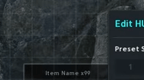
Open the main menu and select Edit HUD on the far right. You can drag interface elements into different positions, choose a grid and enable snapping to help line everything up.

UI Proportion changes the overall size of the interface, letting you make elements smaller or increase them up to Extra Large.

There are six preset slots for saving different layouts. Moving a HUD element activates the Save button, allowing you to save your arrangement to the preset you want to use.

However, UI Proportion and Chat Font Size are global settings. Changing either affects all your presets, so switching layouts will not give you a separate interface scale or chat text size.

For targeting, keybinds and graphics options, check our Aion 2 settings guide.

Import and Export HUD Codes

Export a Preset Code

  1. Select the HUD preset you want to share and save any changes.
  2. Open Export and choose Copy as Code.
  3. Paste the code into a message or document to share it or keep a backup.

The code is copied to your PC’s clipboard. Keep saved codes labelled so you can tell which layout each one contains.

Import a Preset Code

  1. Select an unused preset slot or one you are happy to replace.
  2. Open Load and select Import Code.
  3. Paste the preset code into the text box.
  4. Select Import to apply the layout.

Back up any layout you want to keep before importing over its slot. Using a different preset lets you try a shared setup while keeping your usual HUD available.

Import and Export HUD Files

Export and Find Your Preset File

  1. Select your HUD preset and save any changes.
  2. Open Export and choose Export as File.
  3. Follow the folder path displayed by the game to find the exported file on your PC.

The file is stored in UserHUD, inside PersistentDownloadDir in your Aion 2 save folder. Follow the full location shown when exporting to find the correct folder for your installation.

If AppData is hidden, enable View > Show > Hidden items in Windows 11 File Explorer. You can then navigate through AppData > Local > AION2 and continue along the save-folder path shown by the game.

Load a Preset File

  1. If you downloaded a shared preset, place it in the same UserHUD folder used for your exported files.
  2. Select an unused preset slot or one you are happy to replace.
  3. Open Load > Import File.
  4. Select the file you want to load and import it.

You can rename your preset files to make different layouts easier to recognise. Keep the existing file extension when renaming them. If the list still shows an old name, switch to Import Code and then back to Import File to refresh it.

Although only six layouts fit in the in-game preset slots, you can keep additional setups as saved codes or exported files and load them when needed. Once you find a layout you like, make any final adjustments and save it for your next session.

Video

Table of Contents

See More

How to Import and Export UI Presets in Aion 2
Updated on Oct 9, 2026
Aion 2 Ranger PvE Build
Updated on Oct 9, 2026
Aion 2 Cleric Condemnation PvE Build
Updated on Oct 9, 2026
Aion 2 Sorcerer Hellfire PvE Build
Updated on Oct 8, 2026
Aion 2: How to Get the Transcendent Bakarma Statue
Updated on Oct 7, 2026

Like our guides?

Add Mobalytics as a preferred source on Google!