menu
MobalyticsUse your favourite features in-game with our Desktop App
Gamebase Guide

How to Download and Share Character Presets in Aion 2

Guides
Aion 2
Updated on Oct 10, 2026
Oct 10, 2026

Overview

Aion 2 character presets let you try a new look or share your own creations with other players through the Style Shop.

In this guide, we will cover how to download and upload presets, prepare your screenshots and check the earnings from your shared designs.

If you are still getting started, our Aion 2 beginner guide covers other useful early steps.

A huge thank you to MistaWigglez for his Aion 2 character preset tips!
How to Download Character Presets

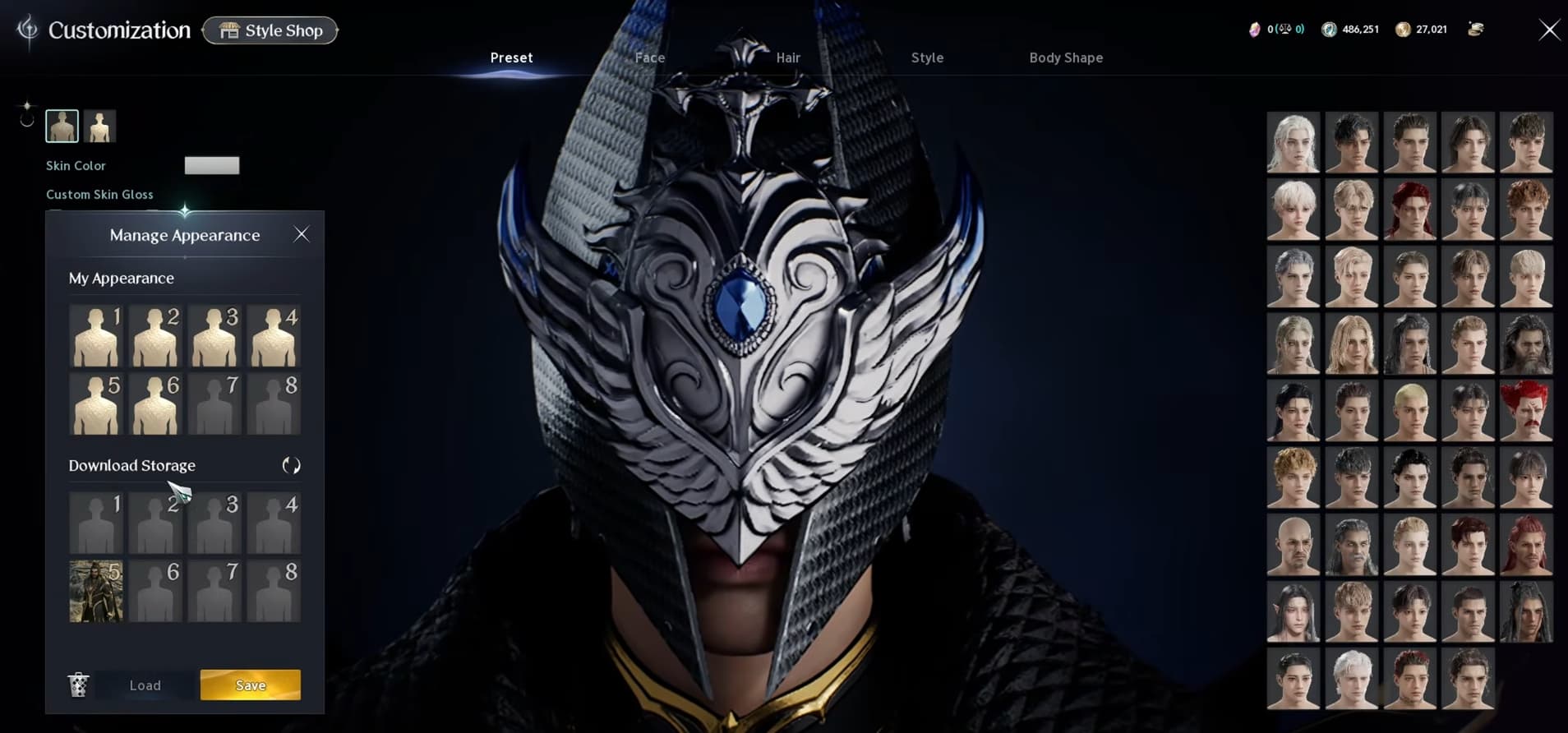
Download a preset through the official Aion 2 Style Shop, then refresh your Download Storage in-game to load it.

  1. Open the main menu and select Customization > Manage Appearance. This menu lets you keep multiple saved appearances and access your Download Storage.
  2. Visit the official Aion 2 website and open Style Shop from the top navigation.
  3. Log in with the account you use to play. Choose Change Character, then select the correct server and character.
  4. Browse Style Home or View All. Look through popular and frequently downloaded styles, or filter by class and categories such as Funny, Cute or Scary. You can favorite designs to find them again later.
  5. Open the preset you want, select Download and choose a Download Storage slot. Use a free slot or one you are happy to replace.
  6. Return to Manage Appearance in-game and press Refresh. The preset can take around a minute to appear.
  7. Select the downloaded preset and press Load. Review the appearance, then check the Apply confirmation and any displayed cost before finalizing the change.

If the preset does not appear, check that the website is set to the same character you are using in-game, allow a little more time and refresh again.

To customize your interface as well, our Aion 2 UI preset guide explains how to import and export HUD layouts.

Take a Snapshot With Customization Info

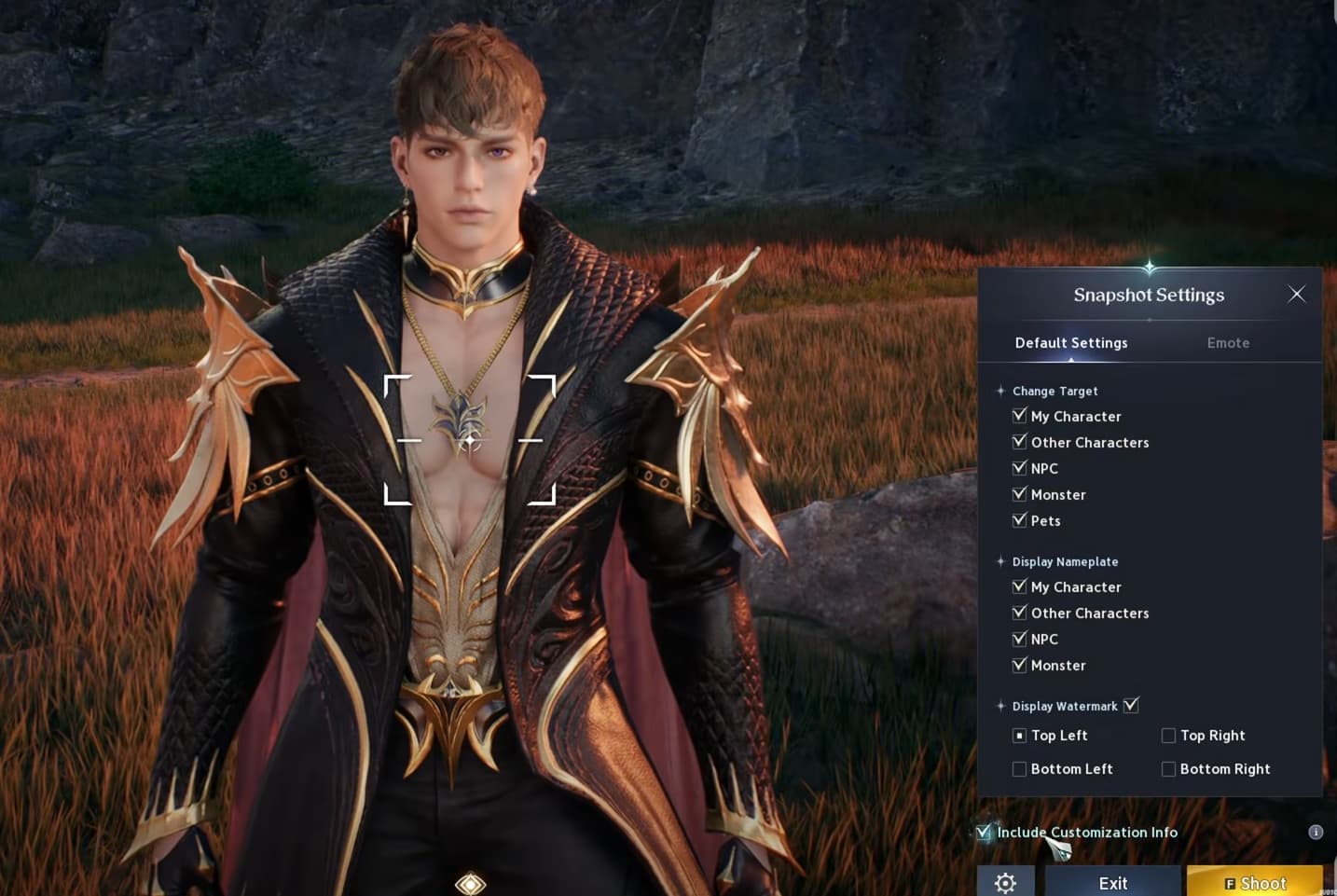
Before uploading your own style, take an in-game snapshot with Include Customization Info enabled. This saves the character customization data with the image so it can be used by the Style Shop.

  1. Set up the appearance you want to share.
  2. Remove equipment that hides details you want people to see, such as headgear covering the face.
  3. Open the main menu and select Snapshot.
  4. Enable Include Customization Info.
  5. Choose a clear angle and background, then select Shoot.
  6. Take additional photos from different angles to show the design clearly.

Keep the customization option enabled for the images you plan to use. A normal screenshot without that information will not provide the preset data needed for registration.

For help adjusting your graphics before taking screenshots, check our Aion 2 settings guide.

Find Your Saved Screenshots

Follow the save location shown by the game after taking your snapshot.

For the Steam installation covered here, navigate through:

Your Windows user folder > AppData > Local > AION2 > Saved_Steam > Screenshots

Open the subfolder containing your images if there is another folder inside Screenshots.

If AppData is hidden, open Windows 11 File Explorer and select View > Show > Hidden items, then return to your user folder.

Use the location displayed by your game if your installation stores screenshots somewhere different. Keep the original snapshot files for the upload so you retain their customization information.

How to Upload Your Own Character Preset

Register your preset through Register My Style in the Style Shop.

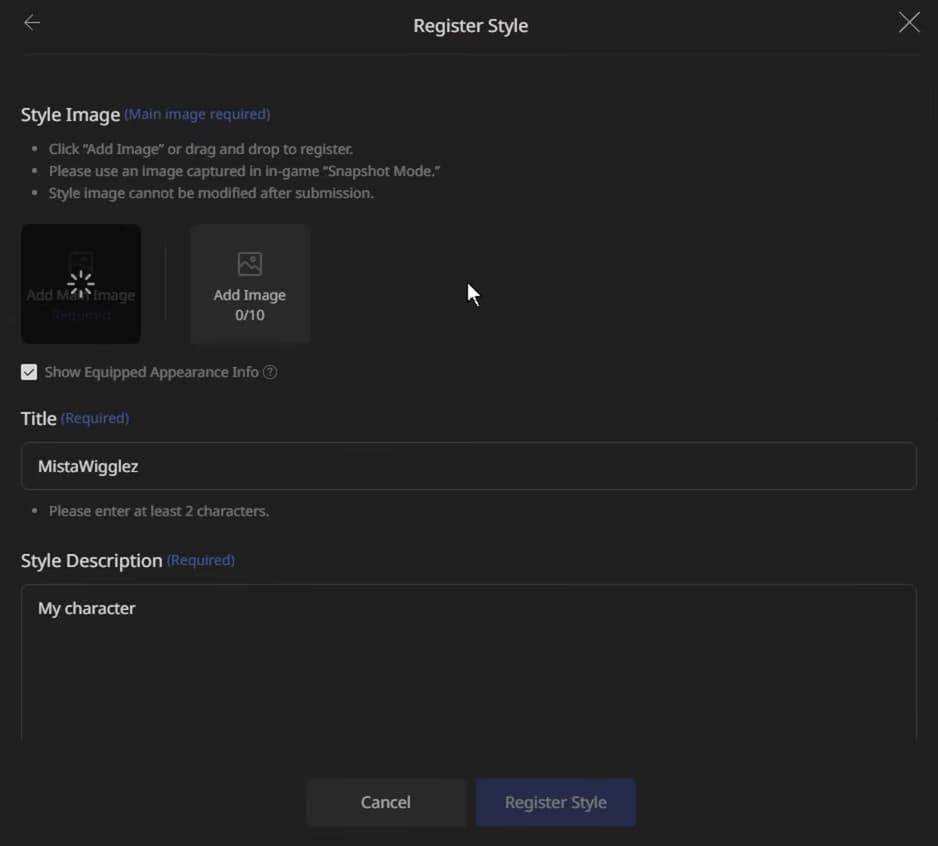
  1. Check that the website has the character whose appearance you captured selected.
  2. Open View All or My Style, then select Register My Style.
  3. Enter a title and description that explain the look.
  4. Add your main snapshot and any additional images showing other angles. Drag the files into the upload area or browse to the screenshot folder.
  5. Choose up to five Style Codes that match your design. These act as category tags to help players find it.
  6. Select Register My Style to publish the preset.

Once registered, your creation appears under My Style and becomes available for other players to find in the shop.

You can edit the listing later to change its title, description or Style Codes. If you forgot to add tags when registering, return to the listing and add them.

Check Your Style Shop Earnings

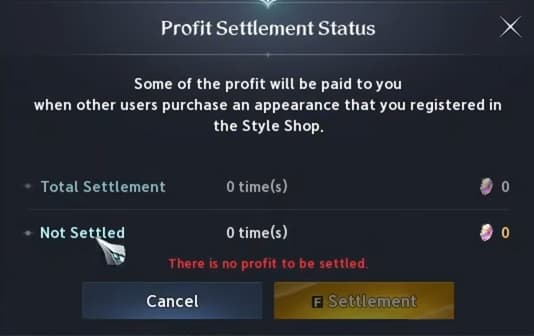
When another player applies your registered style in-game, you can receive creator profit through Settlement in the Customization menu.

Check that panel to see your earnings and the available settlement options. The earning step is another player applying the style, so a favorite or download alone should not be treated as a payout.

Use clear screenshots, an accurate description and relevant Style Codes to make your creation easy to browse. Once it is published, you can return to My Style to update the listing and check Settlement for any earnings.

Video

Table of Contents

See More

How to Farm Kina Fast in Aion 2
Updated on Oct 10, 2026
How to Download and Share Character Presets in Aion 2
Updated on Oct 10, 2026
Aion 2 Class Builds
Updated on Oct 10, 2026
AION 2 PvE Tier List (Best Classes Ranked)
Updated on Oct 10, 2026
Aion 2 Gladiator PvE DPS Build
Updated on Oct 10, 2026

Like our guides?

Add Mobalytics as a preferred source on Google!