Quality of life addons in WoW Forever can help you find quest objectives, prepare for dungeons, improve your maps, and automate everyday tasks. These ten recommendations cover useful additions to your setup, alongside built-in settings for a cleaner and more comfortable interface.
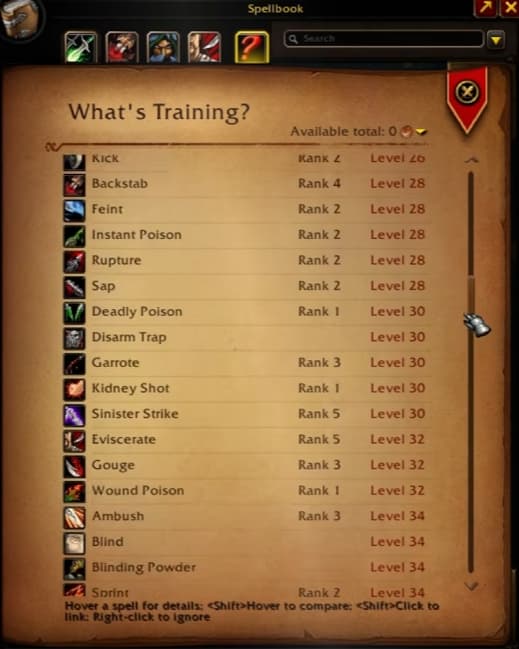
What’s Training adds a tab to your spellbook showing the spells you can learn throughout levels 1–60, including their prices. It makes it easier to check when your next important ability becomes available and how much it will cost to train.
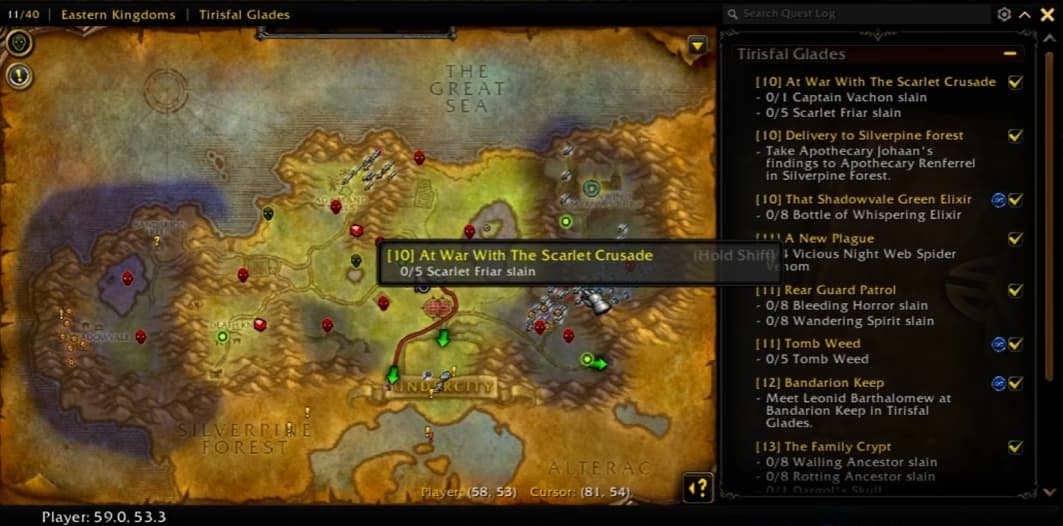
Questie adds detailed map icons for quest objectives, including enemies that drop the items you need. It also gives you more control over your quest tracker.
The built-in quest markers already provide useful guidance, so Questie is an optional choice if you prefer its presentation and more specific markers.
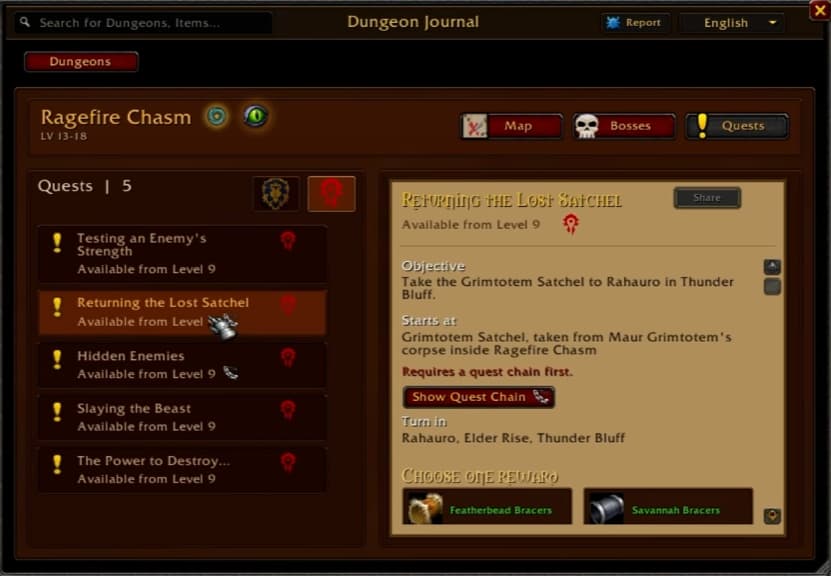
Dungeon Journal brings dungeon maps, bosses, and loot information together. It also shows the quests associated with each dungeon, the level required to accept them, and where their quest chains begin.
Checking it before a dungeon run can help you collect the available quests before heading inside.
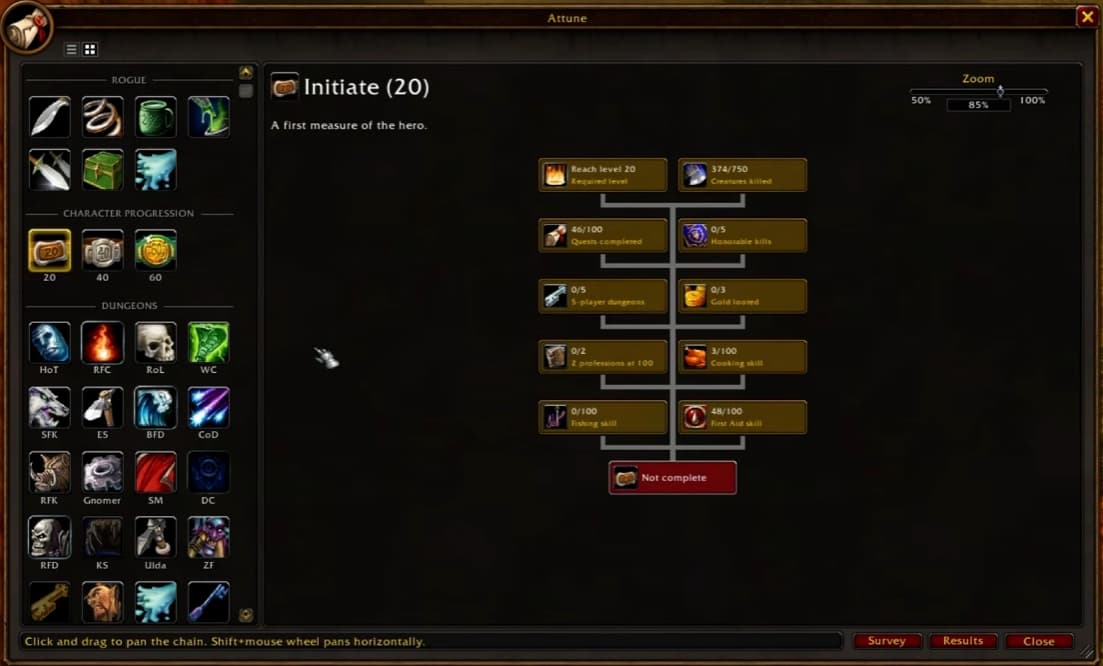
Attune helps you follow progression and unlock requirements, including class quests, dungeon quest chains, keys, and raid attunements.
It also covers other objectives, such as unlocking the sleeping bag for bonus experience, making it useful while leveling as well as when preparing for endgame.
Forever Loot Sparkles adds visible sparkles to quest items and gathering nodes, including herbs and mining veins. It is a simple addition that makes these objects easier to spot while exploring.
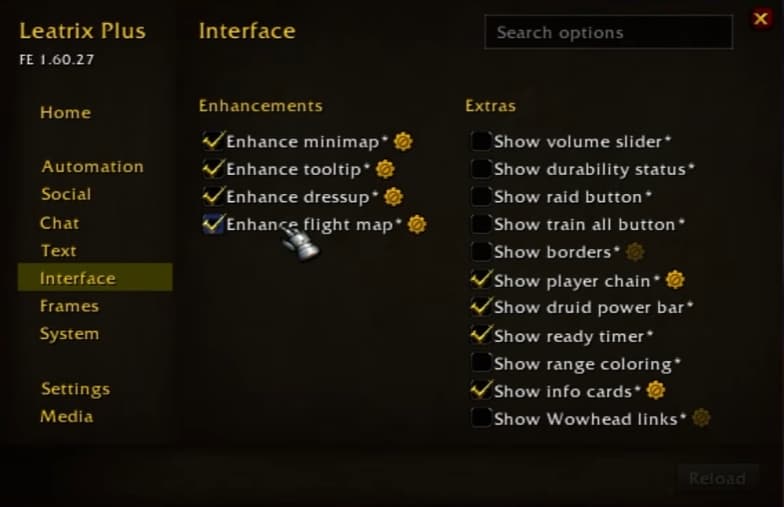
Leatrix Plus brings a wide range of optional quality of life settings into one menu. Useful options include automatically selling junk, repairing equipment, faster auto loot, increased camera zoom, and flight-time information.
You can also enhance the minimap, tooltips, dressing room, and flight map. Other options include class-colored frames, an elite portrait border, ready timers, info cards, and disabling drunken haze or screen effects. Choose the features that suit your setup.
Leatrix Maps reveals the appearance of unexplored areas and adds useful information to the world map. This includes flight paths, dungeon and raid entrances, spirit healers, and directions between zones.
It is particularly helpful when you want to plan where you are going before reaching an unfamiliar area.
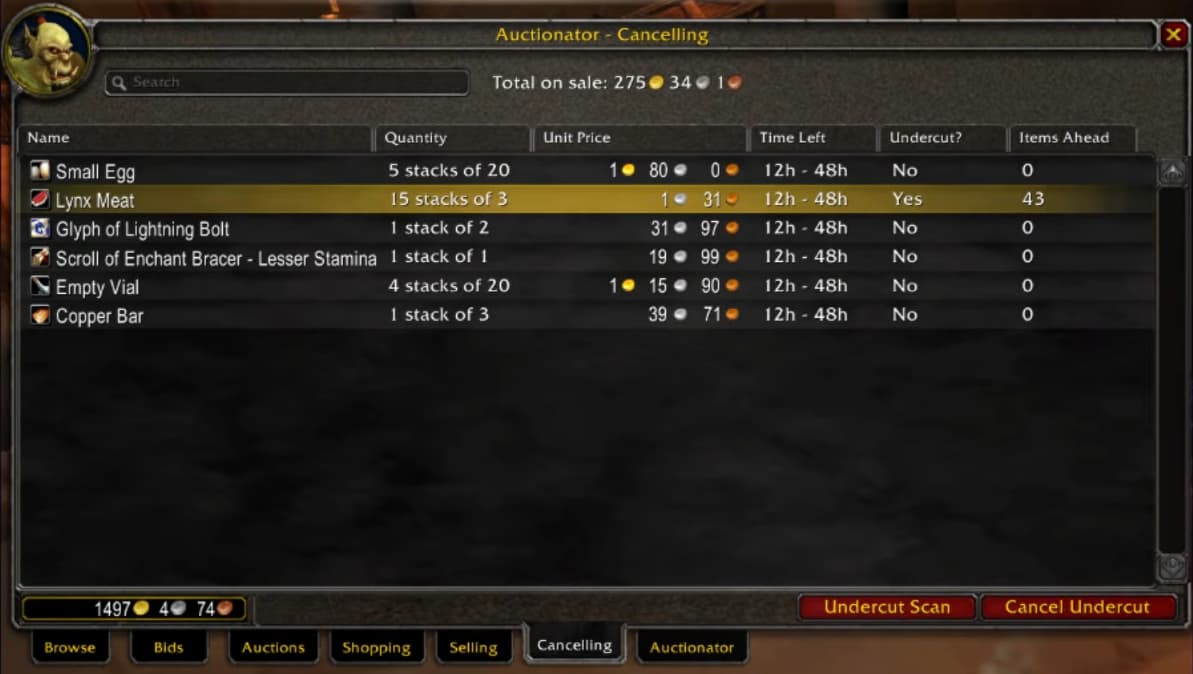
Auctionator makes browsing, buying, and selling at the auction house easier. It also displays auction price information for items you collect, helping you judge their potential value.
Visit the auction house and scan it periodically to keep that pricing information updated.
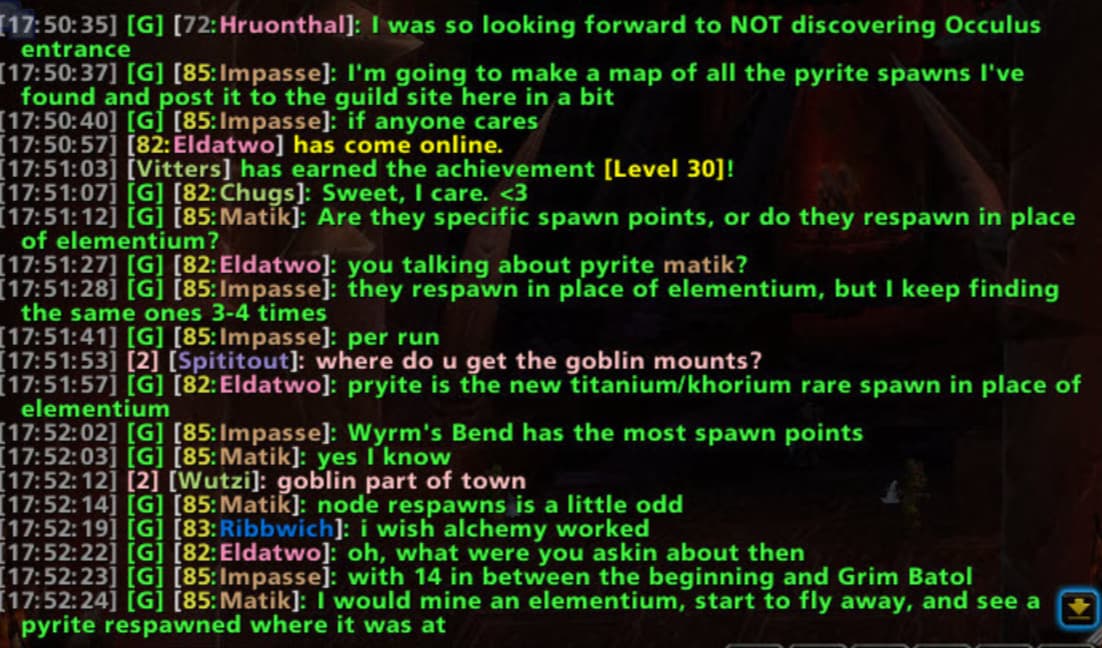
Prat 3.0 improves the chat window with features such as class colors, character levels, and links that you can copy into your browser.
This is useful for opening shared resources or accessing websites used for loot systems such as soft reserves. Its default setup is a straightforward starting point if you do not want to spend much time customizing chat.
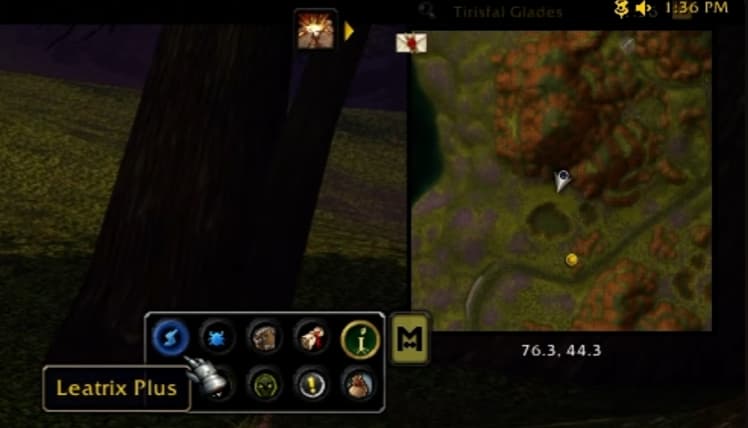
Minimap Button collects your addon buttons into a single folder, helping keep your interface tidy.
The folder initially appears near the middle of the screen. Hold the middle mouse button and drag it to move it wherever you prefer.
Useful In Game Settings
WoW Forever also includes settings worth exploring alongside your addons. These are useful starting points that you can adjust to suit your preferences.
Controls: Enable Auto Loot to collect items more quickly.
Interface: Enable Instant Quest Text and Show Free Bag Space.
Raid Frames: Enable Display Power Bars and Display Class Colors, then set health text to Health Remaining.
Combat: Enable Target of Target. Scrolling Combat Text for Self and self-highlighting options are additional preferences to try.
Personal Resource Display: Customize the information shown near your character. For a Rogue, one option is to keep combo points visible while hiding the health and energy bars.
Ping System: Assign a keybinding so you can use pings during group content.
Advanced Options: Explore the built-in swing timer, damage meter, and cooldown manager to see which features fit your setup.
Customize Your Nameplates
The built-in nameplate options let you adjust buff and debuff sizes, styles, displayed information, class colors, and threat indicators. Use the preview to check each change as you make it.
Try these settings before deciding whether you want a separate nameplate addon. For a broader walkthrough of the available options, visit our WoW Forever UI settings guide.
Finish Your Layout and Keybindings
Use Edit Mode to arrange your interface and Quick Keybinding Mode to assign your action-bar bindings. Once you have finished making changes, enter /reload in chat to reload the interface and save your setup.
With your interface ready, choose one of our WoW Forever leveling guides for your class’s talents, rotation, and progression.




 Rogue