menu
MobalyticsUse your favourite features in-game with our Desktop App
WoW Forever Guide

WoW: Forever - UI Settings Beginner's Guide

Beginner
Mechanics
Updated on Sep 22, 2026
Sep 22, 2026

The Ultimate WoW: Forever UI Guide

In World of Warcraft: Forever, the UI differs from retail World of Warcraft in several ways. Long gone are the days when you needed multiple mods or addons to customise your client to make the game easier to play or suit your style.

In the WoW: Forever Beta, they introduced many new settings and QoL changes. These changes have ranged from controls and interface to action bars, combat, social, ping, nameplates, and more!

In this guide, we’ll cover the essential setting changes to keep your HUD clean and improved! This guide is aimed at beginners who are just getting into the game, as well as people returning to WoW after a long time away, as some of these settings are new/QoL changes and are not in previous versions of WoW. 

This video was created with the help of ItalianSpartacus. Check out their video for more information.

Before we get into this guide, as we are going to make a lot of changes to the UI, if anything gets stuck, do /reload in the chat to ensure your changes are saved.

If you’re interested in more WoW: Forever content, head over to our new WoW section on the site!
Controls & General Settings

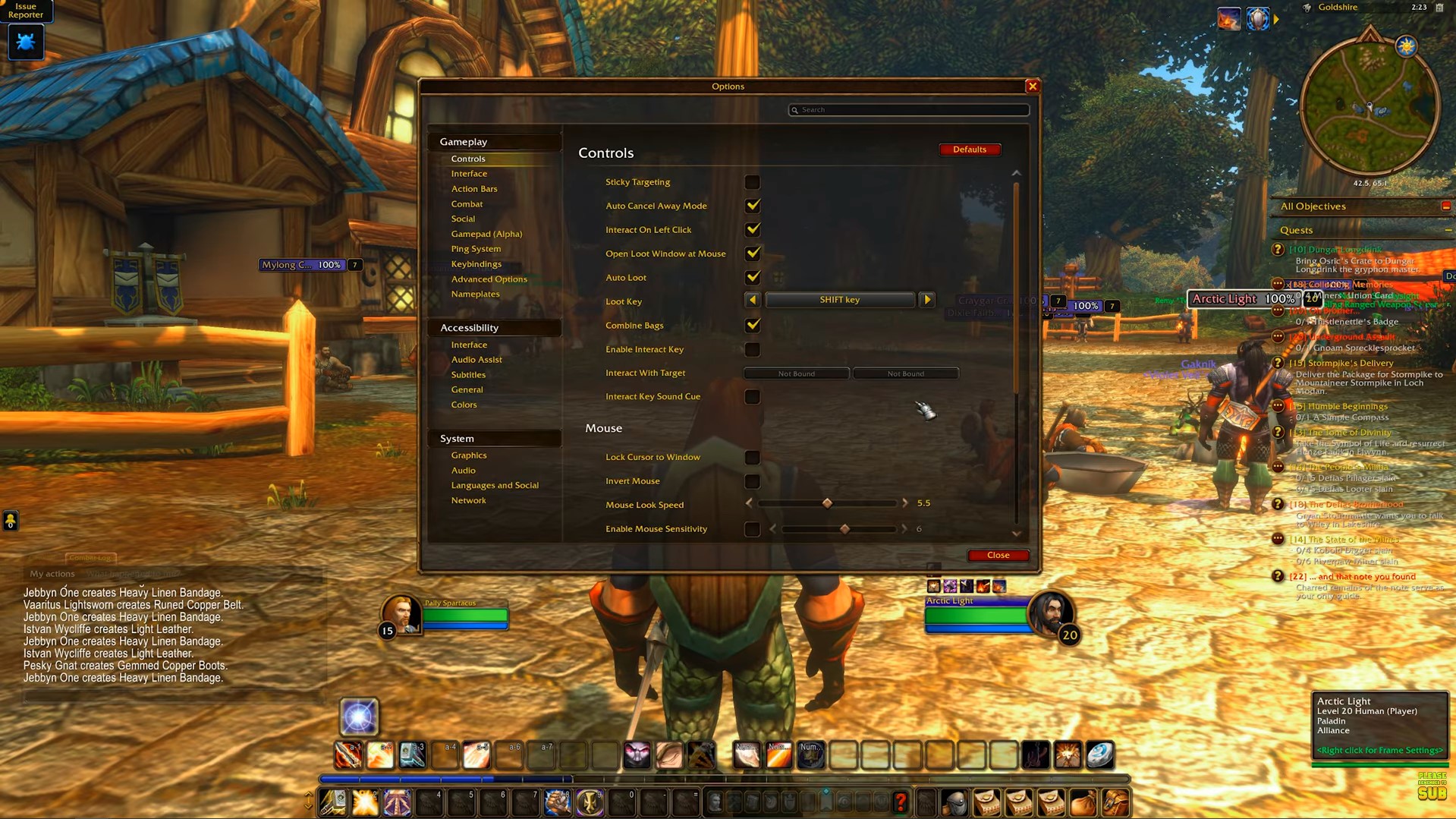
Sticky Targeting

Sticky targeting keeps your current target selected even if you click directly onto the terrain or environment. Turning this OFF lets you deselect targets instantly by clicking anywhere, so you don't have to press extra buttons like Escape during an encounter or clutch situation. 

Control Settings

Auto Loot

Auto Loot is a feature that allows you to pick up items quicker when looting mobs. You can simply make your Right click always auto loot, or add a modifier like SHIFT to do it instead. This can help accelerate your leveling speed by looting faster!

Combine Bags & Backpack Settings

Combining individual bags into a single inventory is convenient in early WoW, but keeping them split becomes useful as your inventory expands and you pick up more collectables. You may have previously used multiple add-ons to separate bags in the past!

Disabling combined bags lets you assign specific tags to individual bags, such as a bag for quest items, gear, crafting materials, and so on.

Camera Behaviour

The default camera behaviour automatically re-centres behind your character while moving, which limits your view. Changing this setting to "Never" lets you spin the camera to inspect your surroundings or check behind you, which is pretty handy when PvPing or dungeon running.

Status Text & Raid Frames

Status Text Customisation

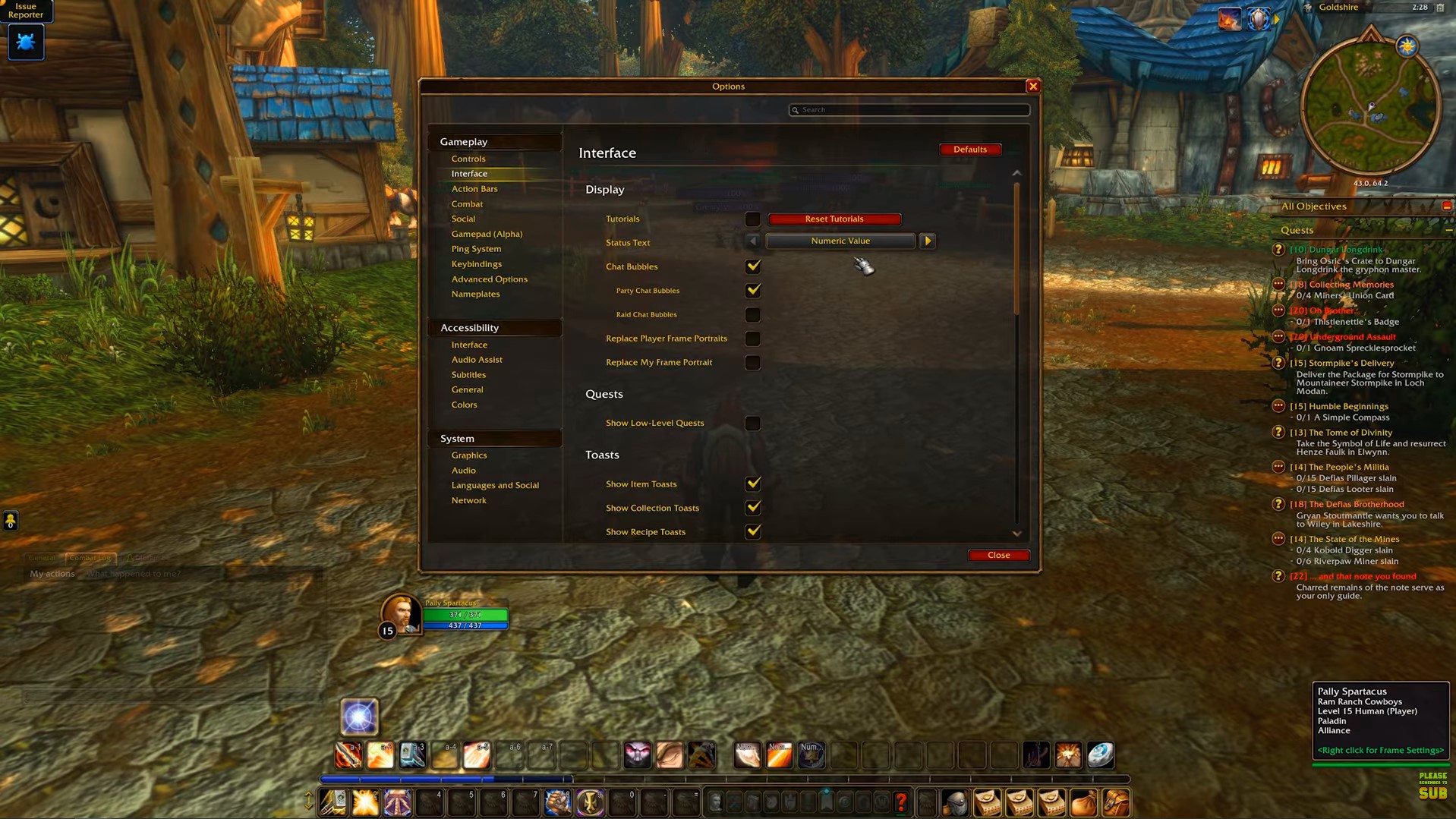
You can change the status on health bars and show values like percentages or actual health. Set the status text to display both so you can easily see your allies' and enemies' numbers!

Gameplay Interface

Raid Frames

When raiding with your friends, you can adjust the frames so you can easily see them in the fight. Enabling Power Bars lets you track important information, while Display Class Colours lets you colour-code each teammate. 

You can also enable Dispellable Debuffs to add visual cues that give you more information.

Combat & Targeting Adjustments

Personal Resource Display & Silhouette 

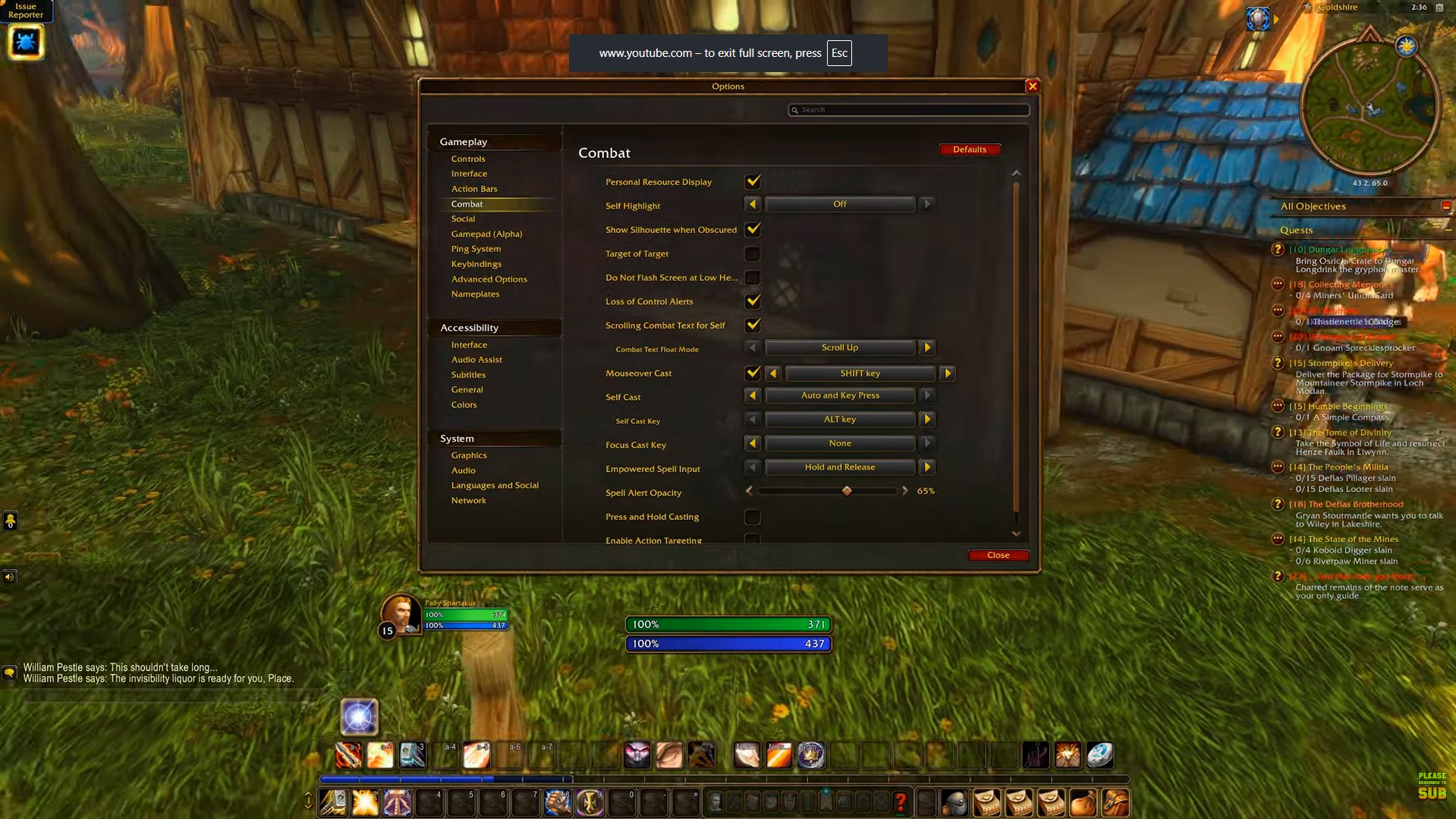
Setting the Personal Resource Display to "Only in Combat" places your health and resource bar directly beneath your character model without cluttering your screen. This comes in handy when you’re PvPing or fighting, as you can easily see your current resources.

You can also enable Show Silhouette When Obscured to help you see yourself when the camera pings/locks in forests or caves, which is a small quality-of-life change!

Combat Settings

Target of Target

Enabling Target of Target is a cool toggle that can help you see who your allies and enemies are focusing. This can help you grasp who is dealing damage, who needs help, or spot obvious mistakes in the raid that can cost you the run. 

This is also good to have turned on in a massive raid with lots of people, so you can actually see who you’re targeting!

Mouseover

Configuring mouseover and click casting eliminates the delay of manually clicking unit frames before using a spell. This can also help if you’re new to the game, slightly older, or get nervous in clutch situations. It will help you to instantly react to situations to keep your team alive.

Click Casting & Cooldown Manager

Click Casting

You can set up Click Casting Bindings so you can hover over nameplates and the player HUD to quick-cast spells and other things. This saves time and can help you optimise raids, since you’re not spending time memorising complex bindings, searching for spells, or missing key timers.

Before, you would have to install addons to make this slightly easier, but now it is fully built into the game!

Click Casting

Cooldown Manager

The new Cooldown Manager removes the requirement for complex tracking add-ons. By placing rotational cooldowns, defensives, and actives at the bottom of the screen, you can easily see cooldowns and timers, so you can fully utilise your spell rotations and keep everything running smoothly.

Nameplate Customisation

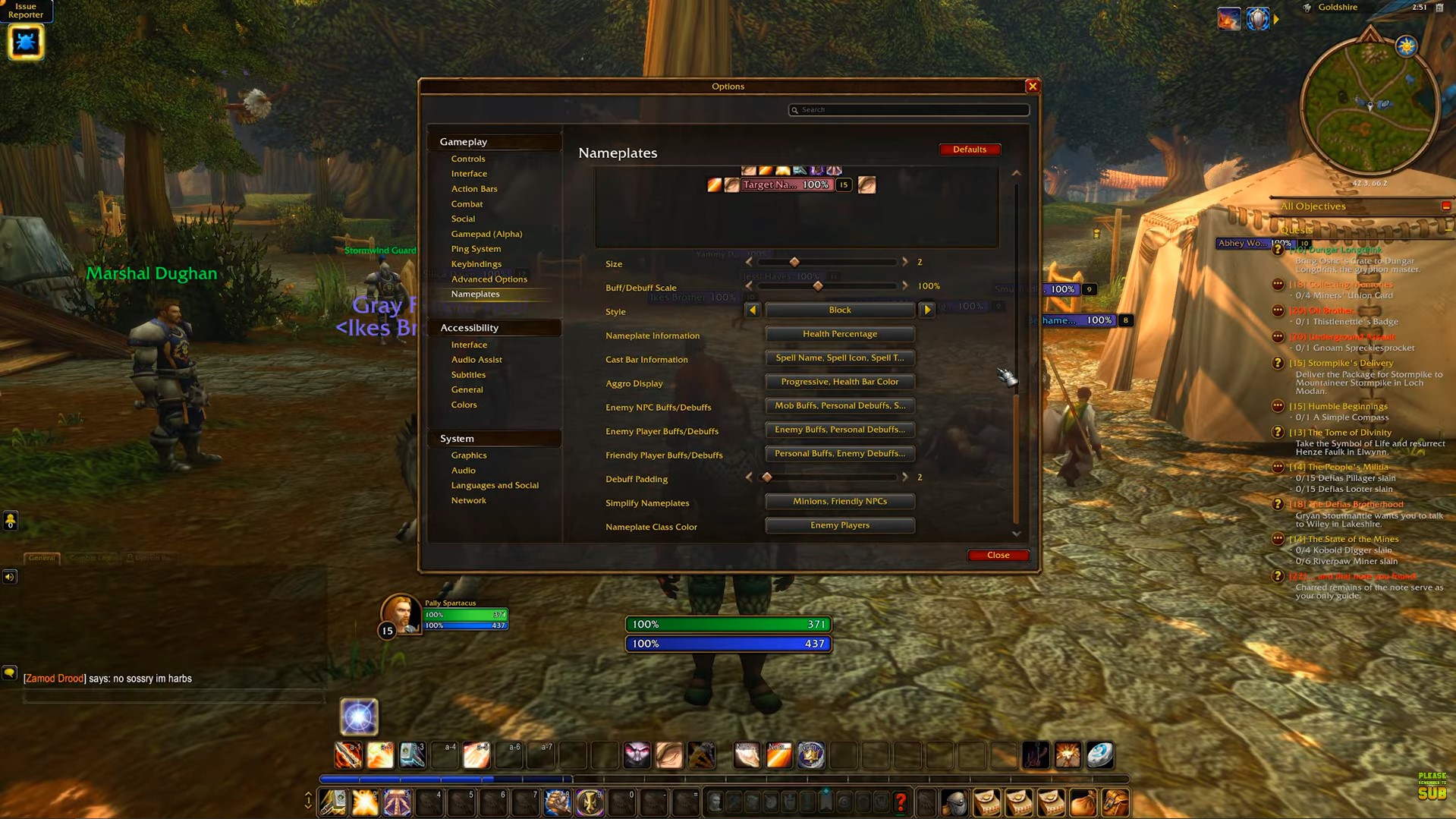
Nameplate Customisation

In WoW, you can change nameplates depending on what you want to see. There are a lot of options available, but turning many of them on (such as in our screenshot), allows you to see more information that can help you turn around a raid. For instance, Highlight Important Casts allows you to see and potentially interrupt major spells.

Name Plates

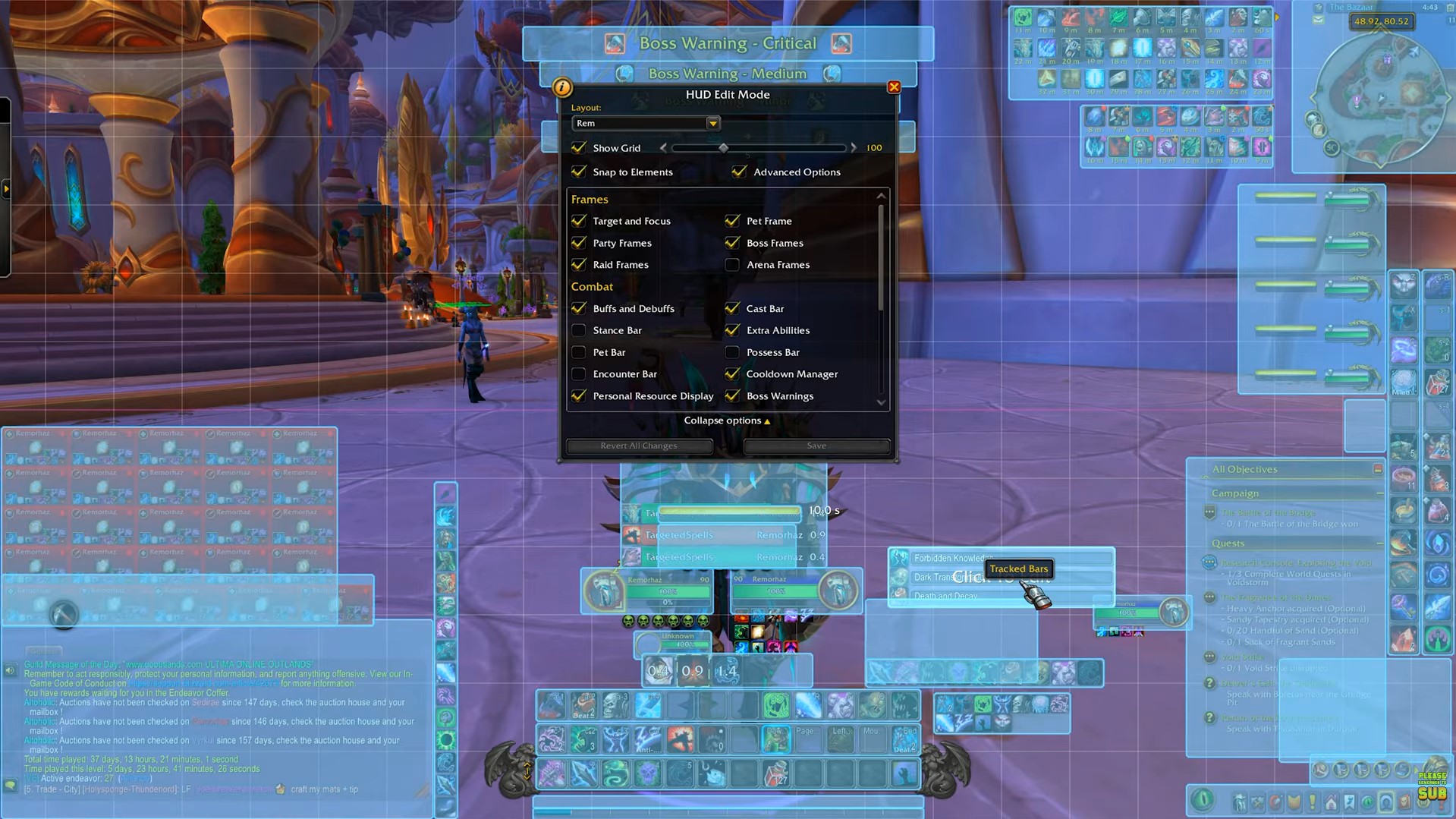
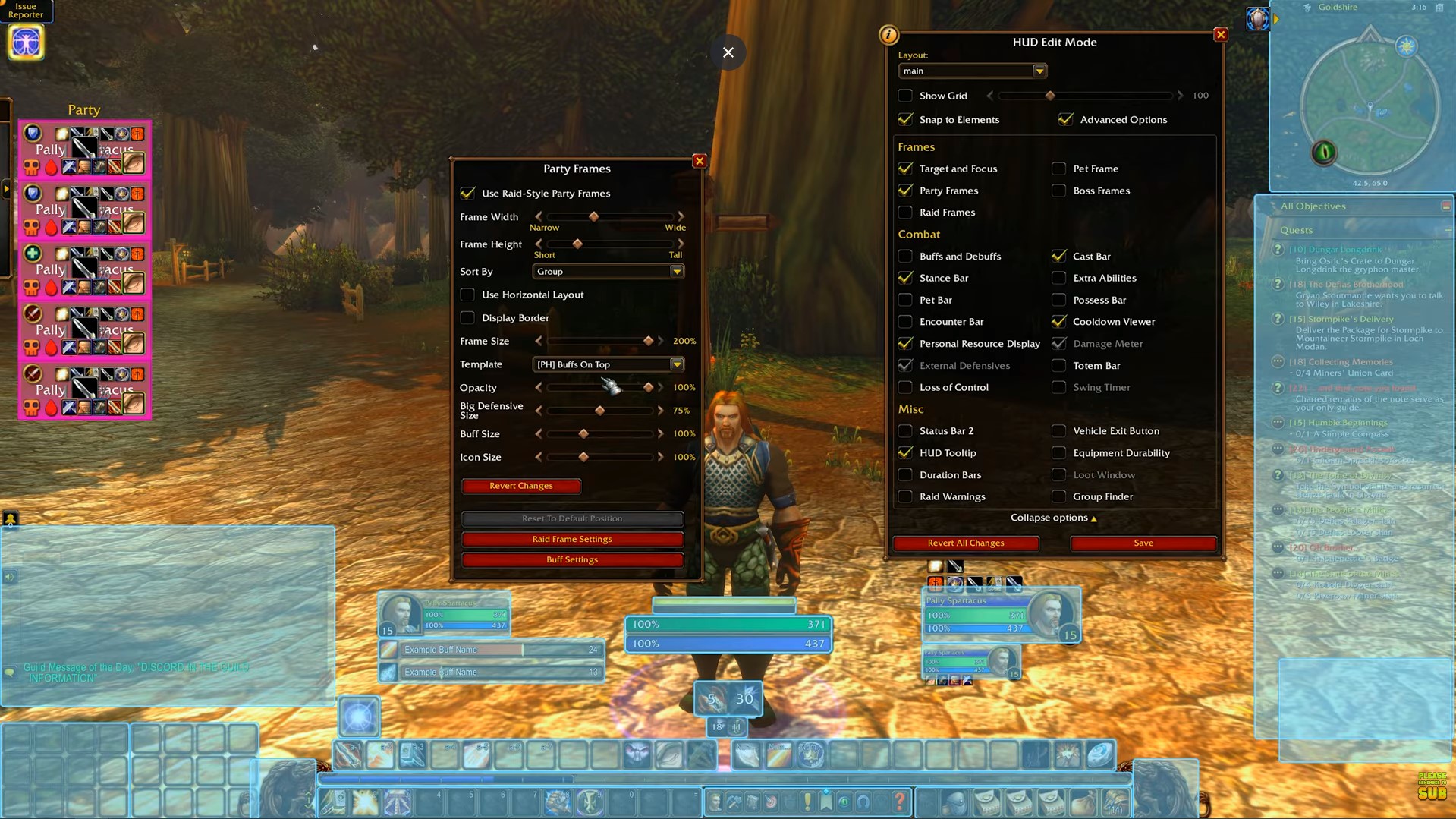
HUD Edit Mode

Edit Mode

Finally, you can fully customise your UI by going to the Game Menu, selecting Edit Mode, and then customising everything you want. Enable Grid and Snap to Elements first so you can align everything the way you want.

For anything you don't currently have active, you can enable it in HUD Edit Mode, then edit each component as you like or as suits your style.

HUD edit mode

Video

Table of Contents

See More

Zephras Isle Interactive Map
Updated on Sep 24, 2026
Zone Map: Level Ranges for Every Zone (Alliance & Horde)
Updated on Sep 23, 2026
Leatherworking Guide - New Recipes and Changes
Updated on Sep 22, 2026
Skinning Guide - New Recipes and Changes
Updated on Sep 22, 2026
Lockpicking Guide
Updated on Sep 22, 2026

Like our guides?

Add Mobalytics as a preferred source on Google!