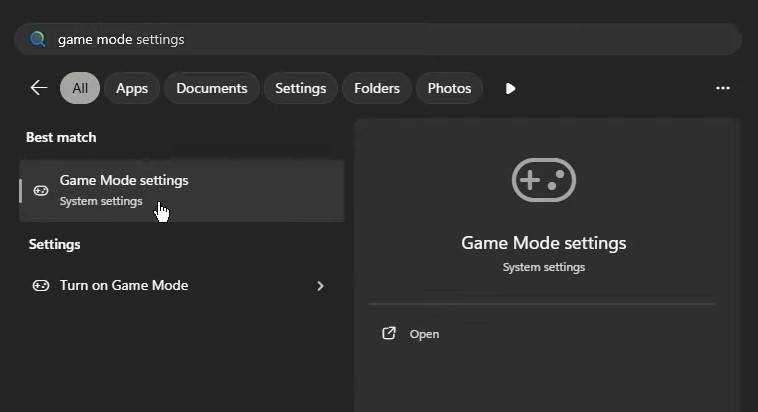
First, head to Game Mode settings and then make sure it's toggled on. This enables your CPU and GPU
This enables your CPU and GPU to focus on the foreground task, Marathon in this case, instead of background tasks.
Make Sure Hardware-accelerated GPU Scheduling (HAGS) is on
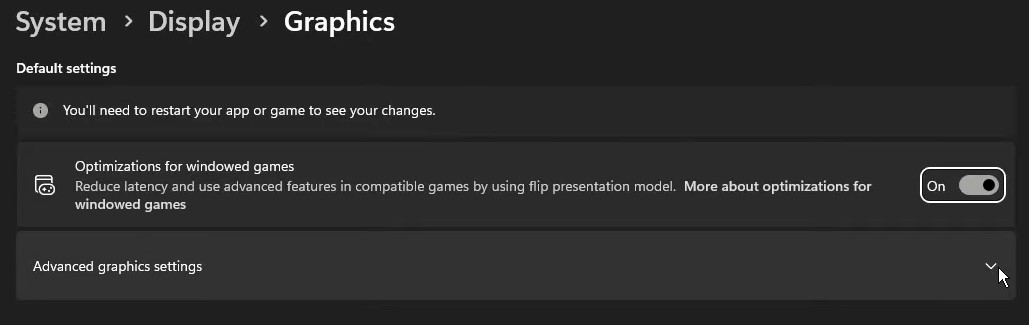
Then, go to Graphics Settings (System > Display > Graphics). Once you're there make sure Optimizations for windowed games is toggled on.
Then, open Advanced graphics settings and then make sure Hardware-accelerated GPU scheduling (HAGS) is on.
This should help boost your average FPS and your 1% lows but make sure to compare what it feels like on and off to see what works best for your system.
Turn Off Dynamic Lighting
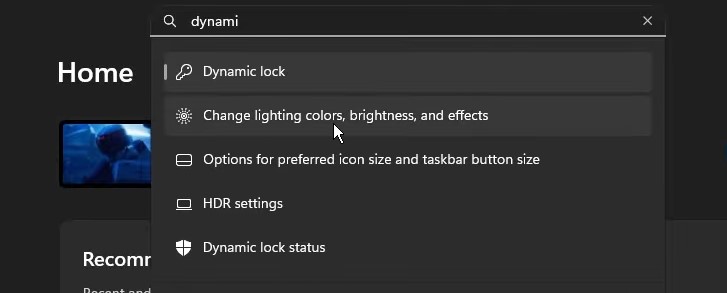
To find this section, search for dynamic lighting and you should see "Change lighting colors, brightness, and effects" appear.
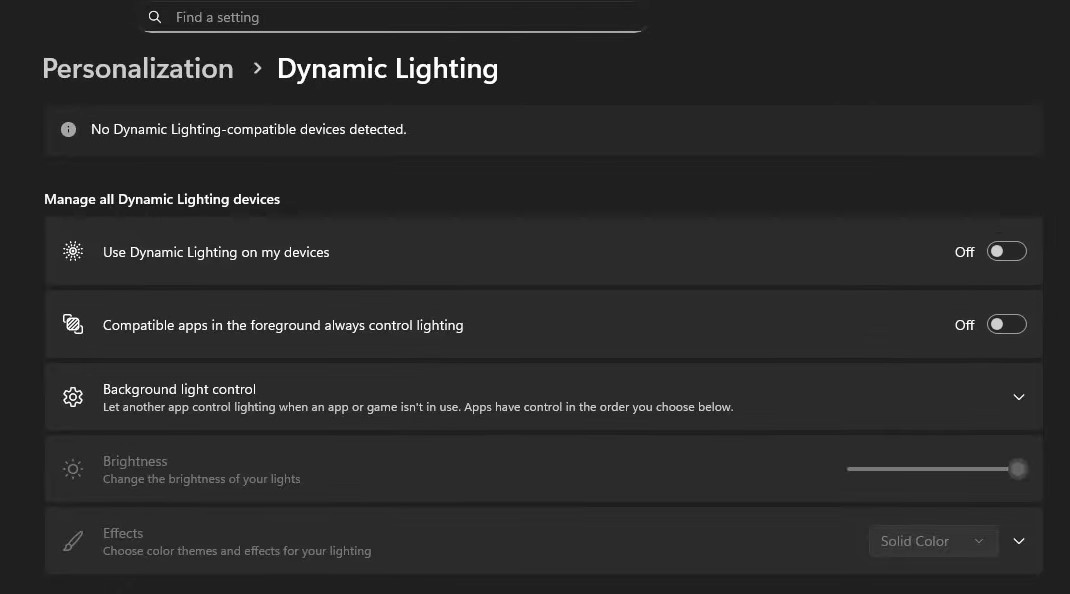
Once you're there, make sure that "Use Dynamic Lighting on my devices" and "Compatible apps in the foreground always control lighting" are toggled off.
We turn this off because it's a background app that manages your RGB lighting which can conflict with your other programs that already do this.
Turn Off Starting Apps You Don't Need
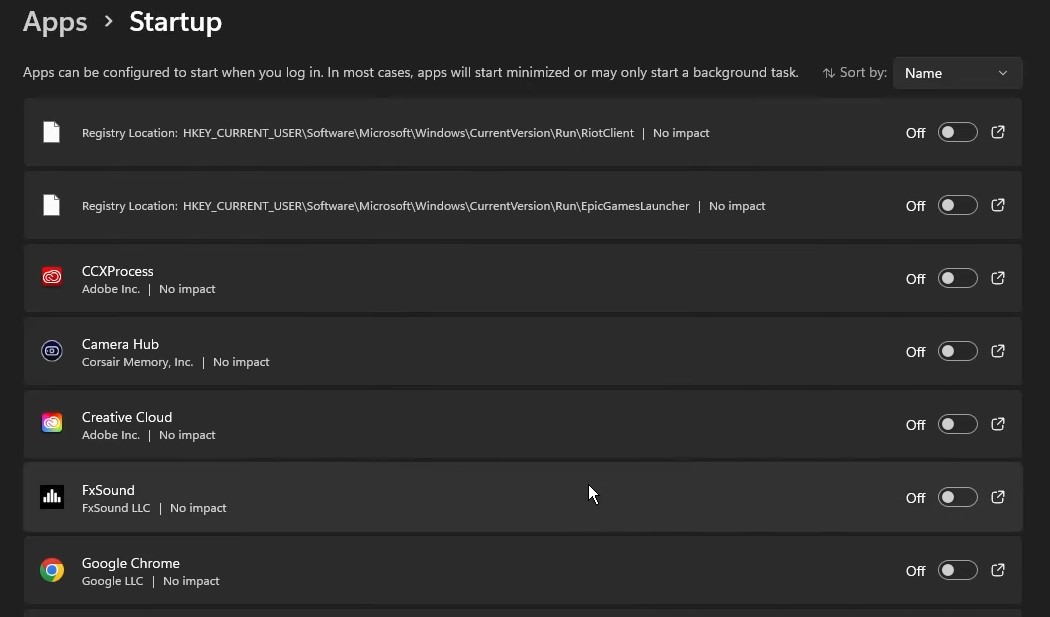
Under Apps -> Startup, we recommend turning off everything that you don't need on when your PC turns on.
These include things like Google Chrome, Spotify, and Steam.
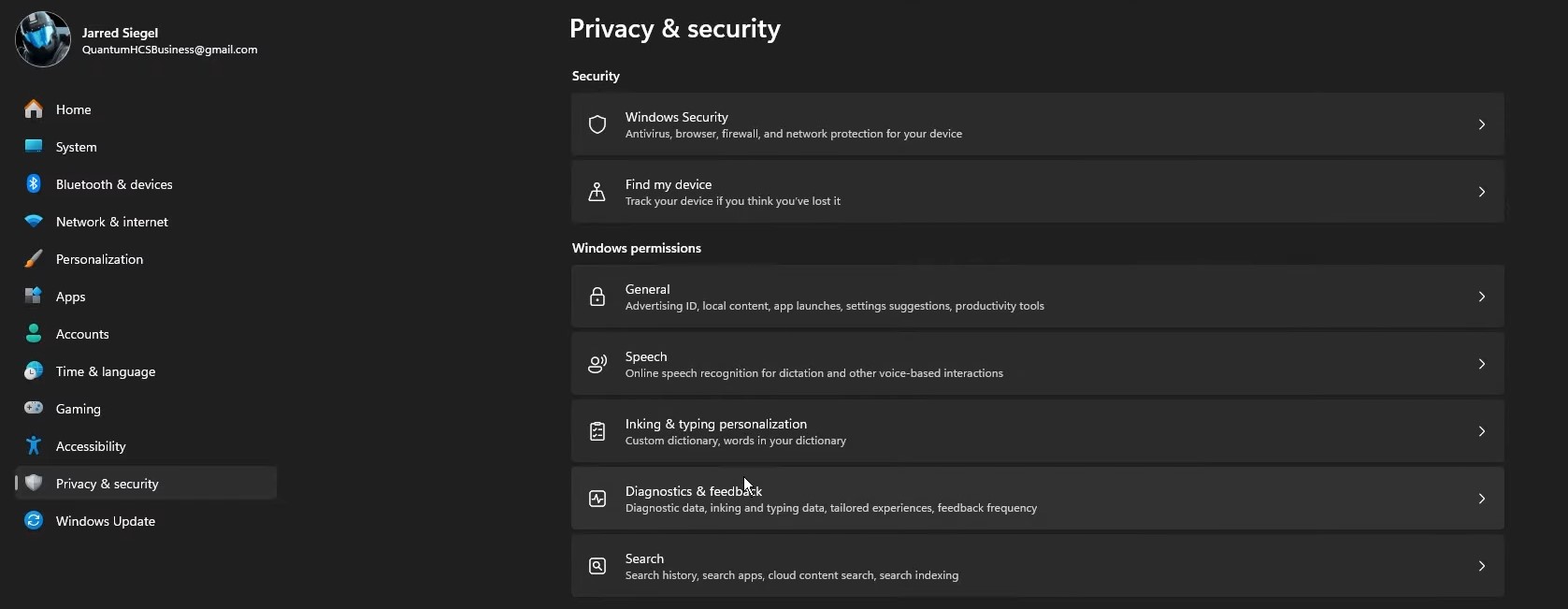
Then, go to Privacy & Security and turn off everything within:
General
Speech
Inking & typing personalization
Diagnostics and feedback
Turn Off Share Across Devices
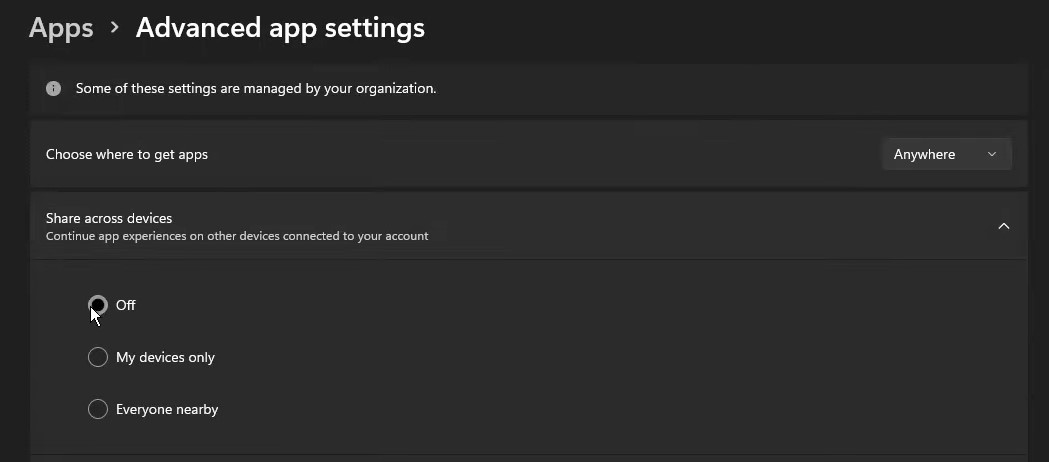
Under Apps -> Advanced app settings, you'll find "Share across devices".
Turn that off unless you actually use this functionality.
Turn Off Allow Downloads From Other Devices
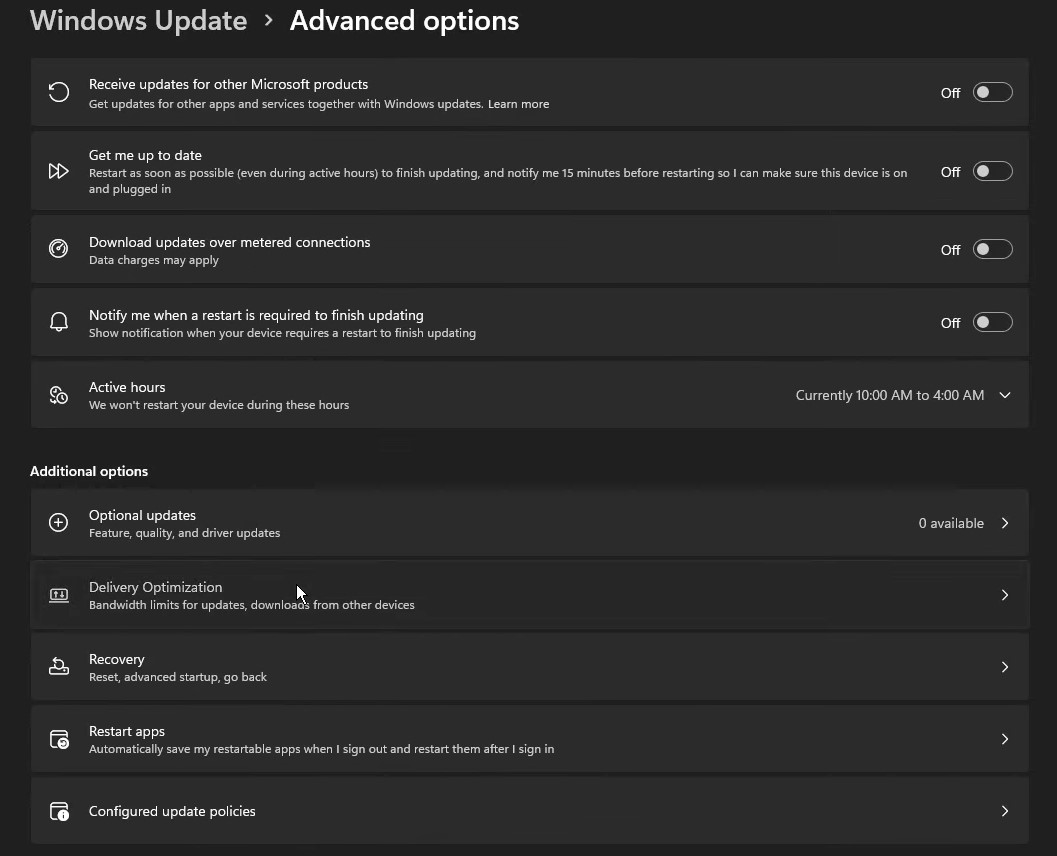
Head to Windows Update settings -> Advanced options -> Delivery Optimization.
Then, make sure that "Allow downloads from other devices" is off.
While you're still under Advanced options, also make sure to turn off:
Receive updates for other Microsoft products
Get me up to date
Download updates over metered connections
Notify me when a restart is required to finish updating
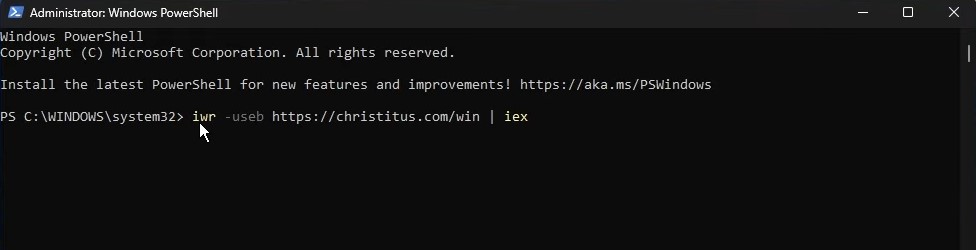
Debloat Windows 11 With PowerShell
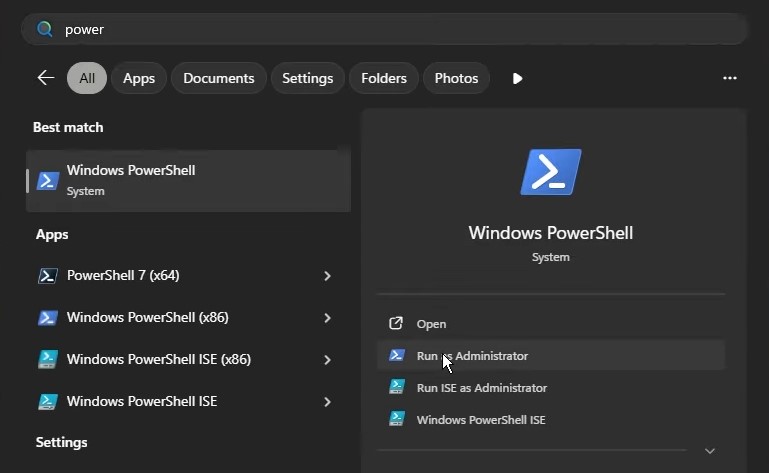
Search for Windows PowerShell and choose to Run as Administrator.
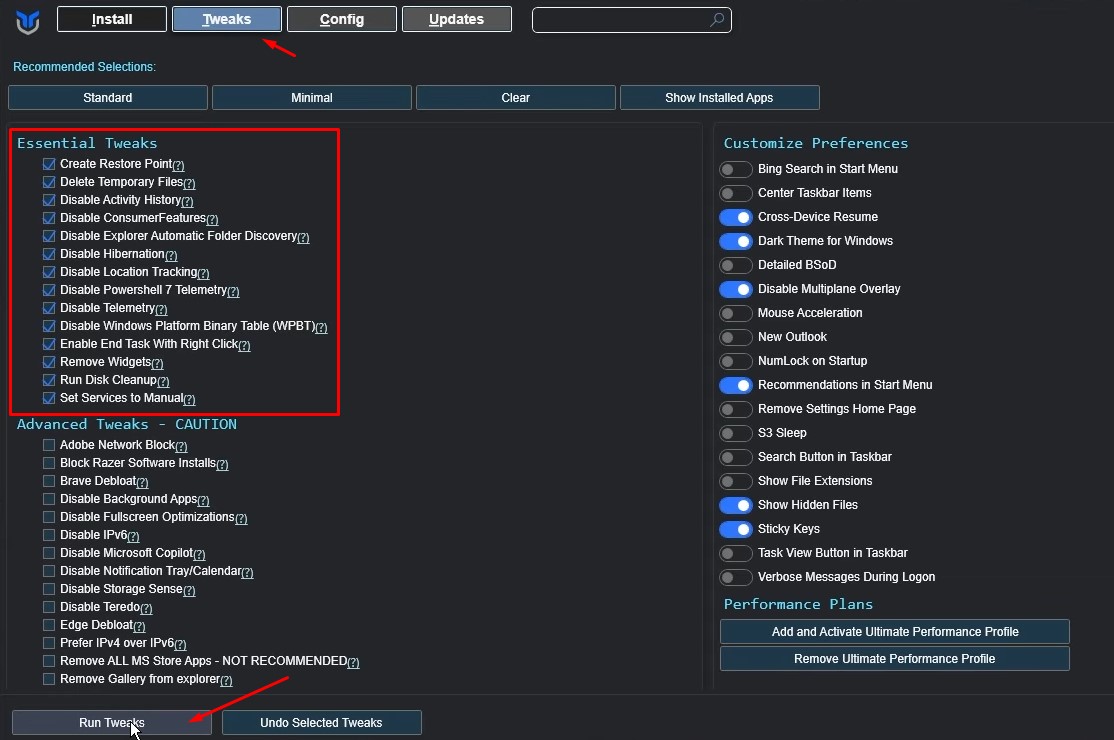
Once the tool is up, head to Tweaks and enable all the Essential Tweaks before pressing Run Tweaks.
Edit Power Plan
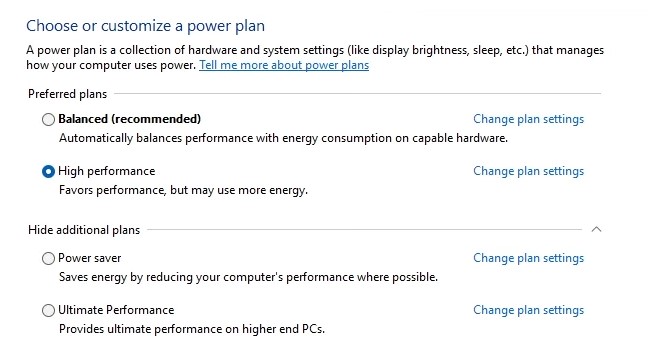
Search for Power Plan within the Windows Control Panel and then select High Performance.
If you don't have Ultimate Performance displaying, search for cmd, run Command Prompt as administrator, copy-paste: "powercfg -duplicatescheme e9a42b02-d5df-448d-aa00-03f14749eb61", and then press Enter.
It should then appear under your Power Options (you might have to refresh), allowing you an even higher tier if you have a high-end PC.
Download MSI Afterburner
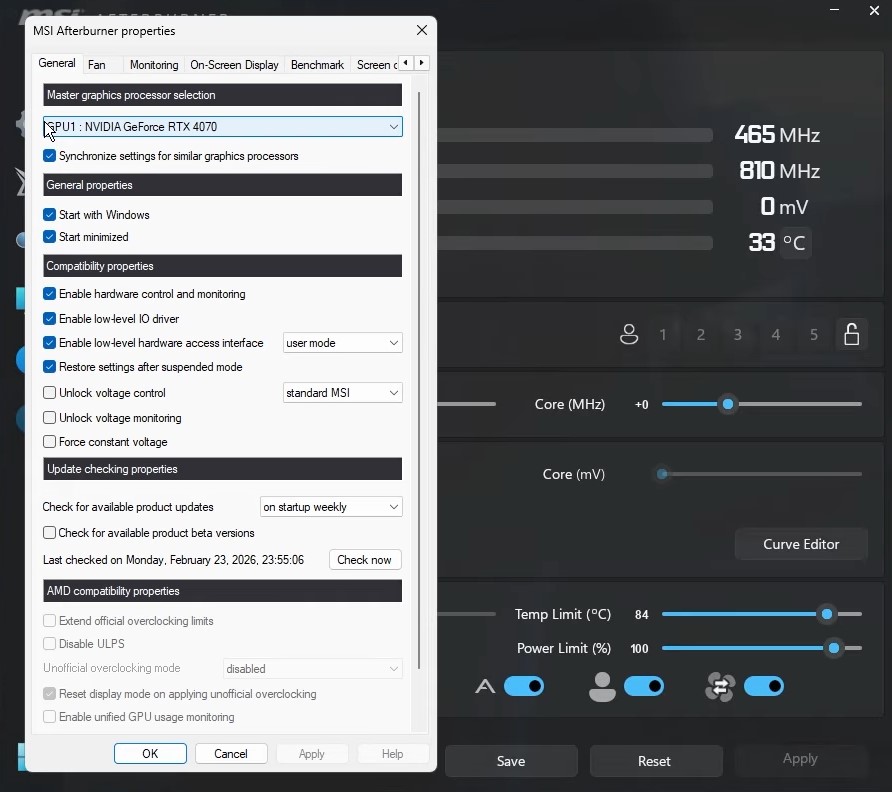
Download the latest version of MSI Afterburner, then head to the settings (gear icon) and make sure that "Start with Windows" and "Start minimized" are selected.
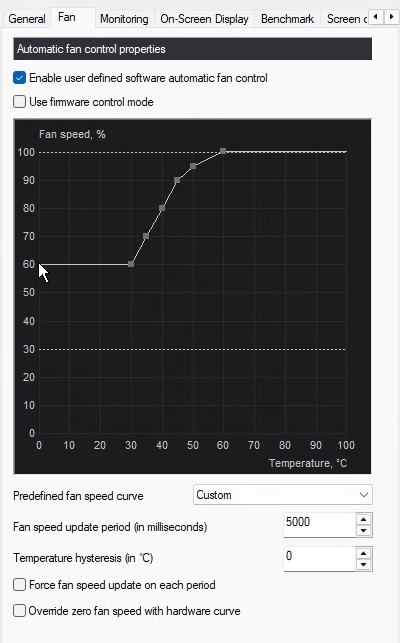
Next, open the Fan tab, turn on "Enable user detected software automatic fan control" and then follow the same settings as below:
This should lower your idle temperatures if done correctly.
Adjust Nvidia Control Panel (Nvidia Users Only)
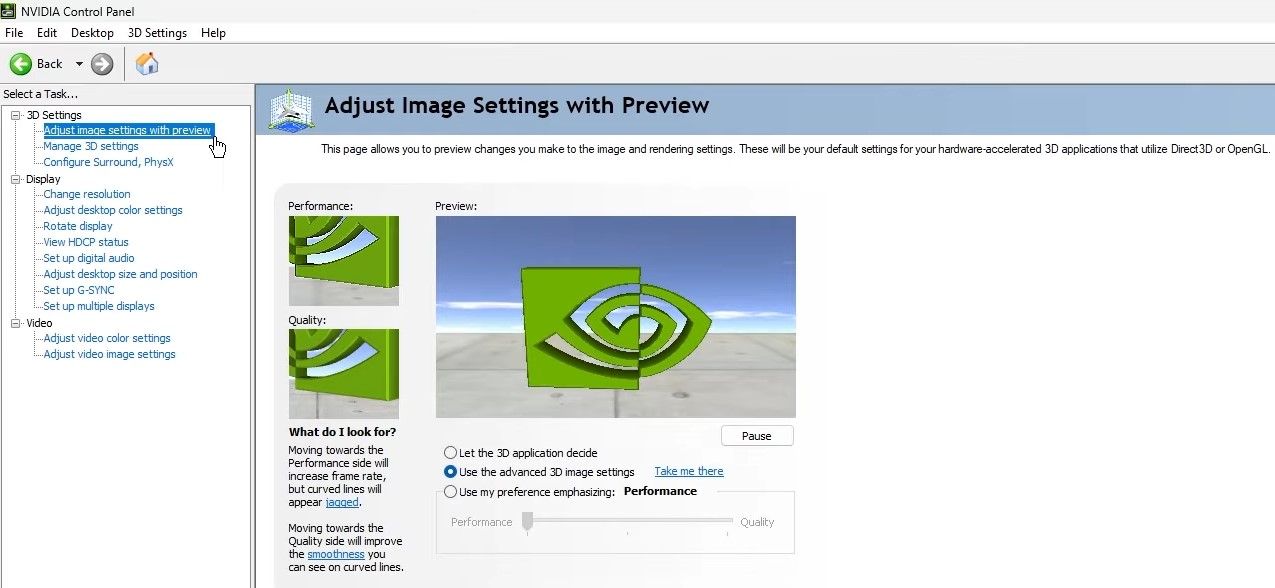
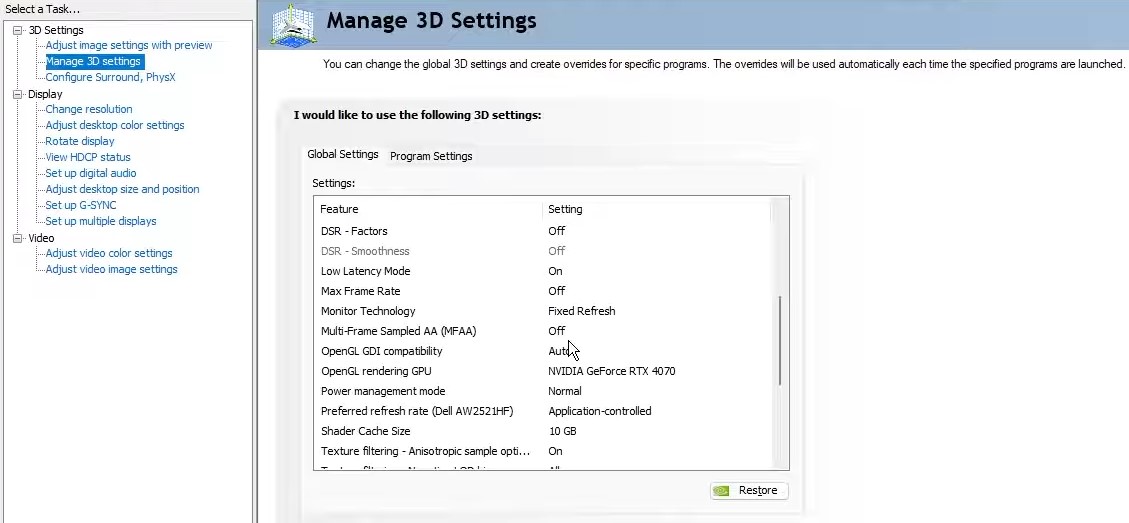
Start by going to the Nvidia Control Panel and then select "Adjust image settings with preview". From there, make sure that "Use my preference emphasizing: "Performance" is selected and slid to the left, and then select "use the advanced 3D image settings and Apply.
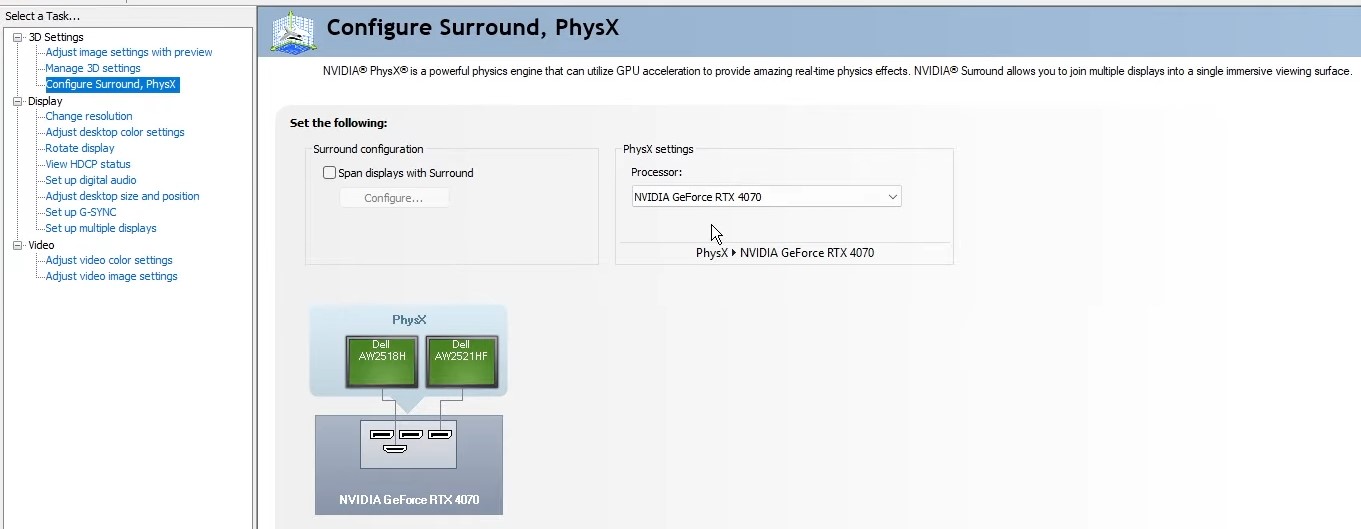
Next, click on "Configure Surround, PhysX to make sure that your GPU is selected and click Apply once more.
Afterward, head to "Manage 3D settings". You can choose to use Global Settings, but SiegeOC uses Program Settings.
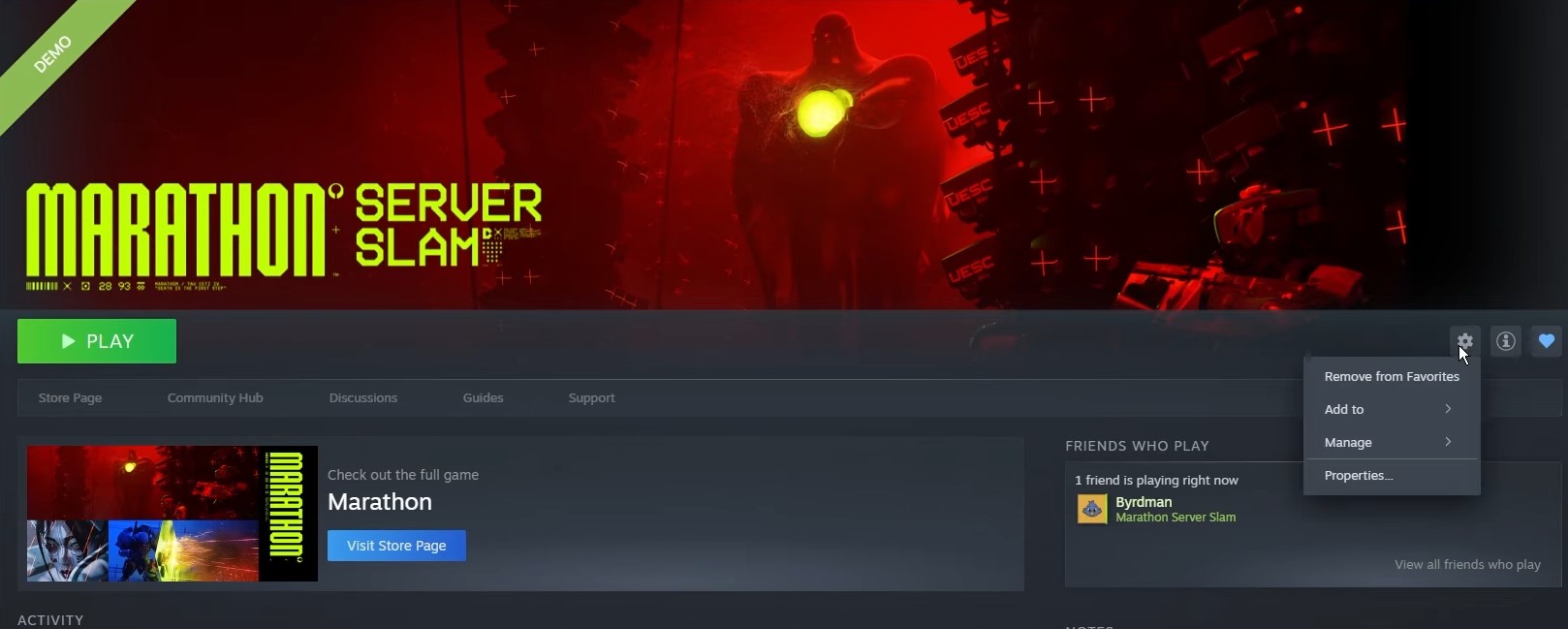
Next, go to Steam and select Marathon (the Server Slam for now).
Click on the gear for settings, then go to Manage -> Browse local files -> copy the address listed below:
Return back to the Nvidia Control Panel -> Add -> Browse -> paste the address above -> select and open Marathon (the bigger file). At this phase, we recommend clicking here to jump to the timestamps of the recommended Settings to copy.
Adjust In-Game Marathon Settings
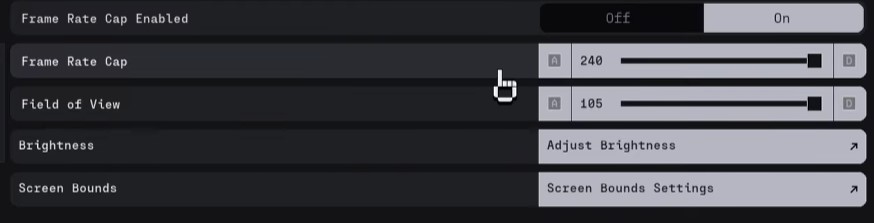
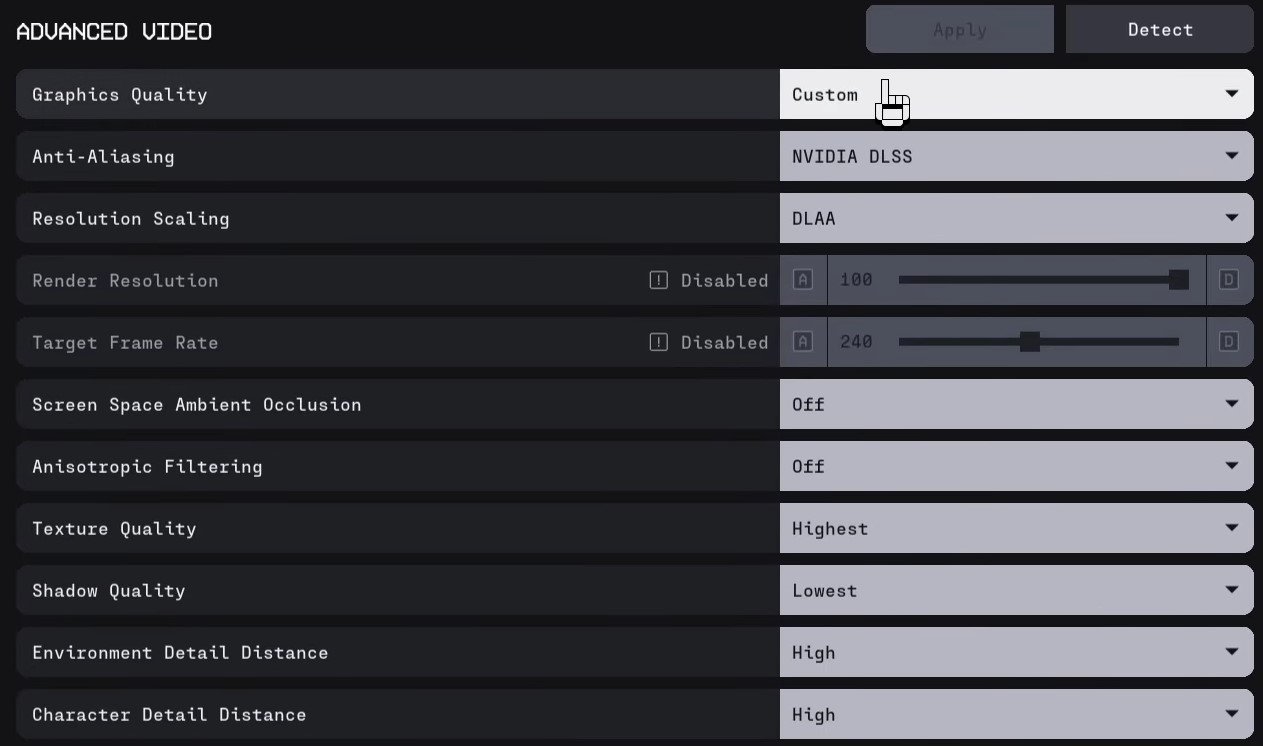
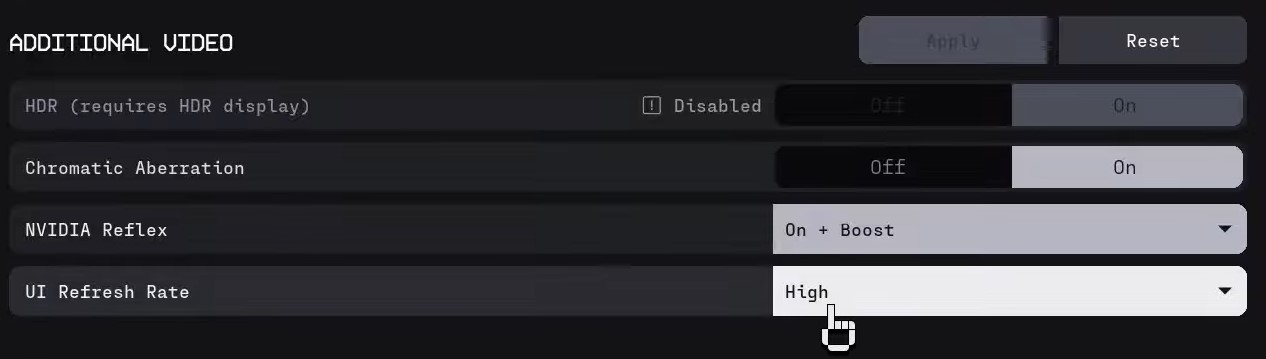
Within Marathon head to Settings -> Video and adapt the following Settings: