


PoE 2 Patch 0.2.0f came with a host of massive quality of life updates, including Atlas Bookmarks that make navigating the sprawling Atlas much easier. The Atlas Bookmark system is surprisingly more extensive than at initial glance, and today's guide will cover all the ins and outs of this great change
 Use your favourite features in-game with our Desktop App
Overview
Guide
How to Add an Atlas Bookmark
Adding an Atlas Bookmark is as simple as right-clicking any Map, Tower or point of interest on the Atlas.
This will open a popup that will allow you to:
- Add a Bookmark Name
- Add an Icon (click the Triangle Icon to the right of "Name")
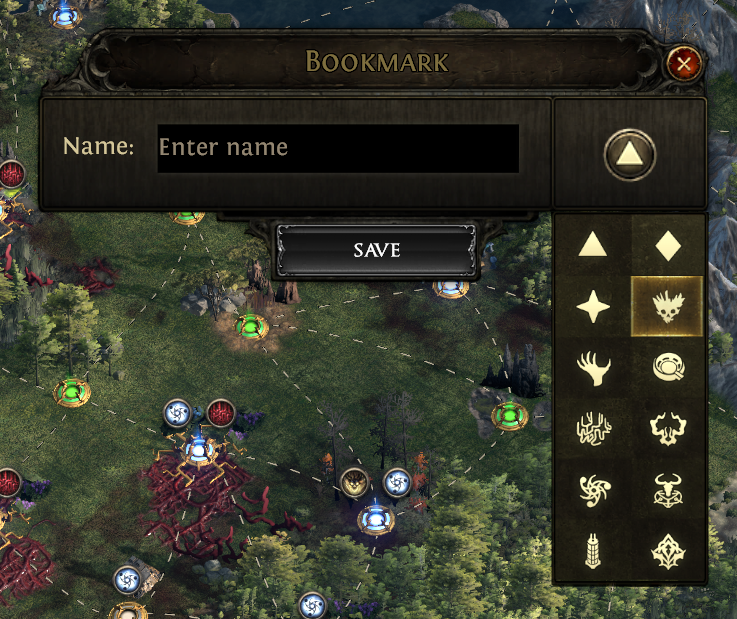
Adding an Atlas Bookmark Name and Icon
After adding a name and an optional icon, the Atlas Bookmark will now appear above the point of interest you selected. The name and icon you chose will also be displayed above the point.
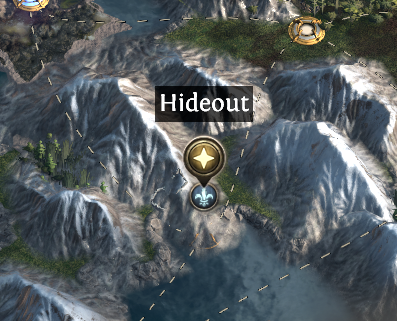
How an Atlas Bookmark appears after being added
Editing Atlas Bookmarks
Atlas Bookmarks can be quickly and easily edited by right-clicking on the icon on the Atlas, allowing you to change the name, the icon, or remove the Bookmark entirely
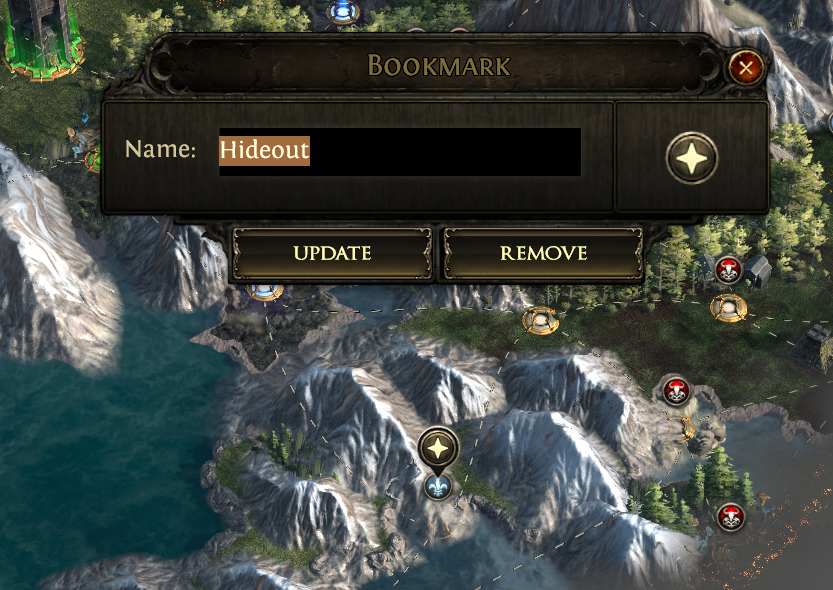
Updating an Atlas Bookmark
Navigating Atlas Bookmarks
You can have up to 16 Atlas Bookmarks, and they will be displayed at the edge of your Atlas as you scroll around. Clicking one of these icons will instantly travel you to that area of your Atlas. You can also hover over the icon to see the name you had assigned to that Atlas Bookmark
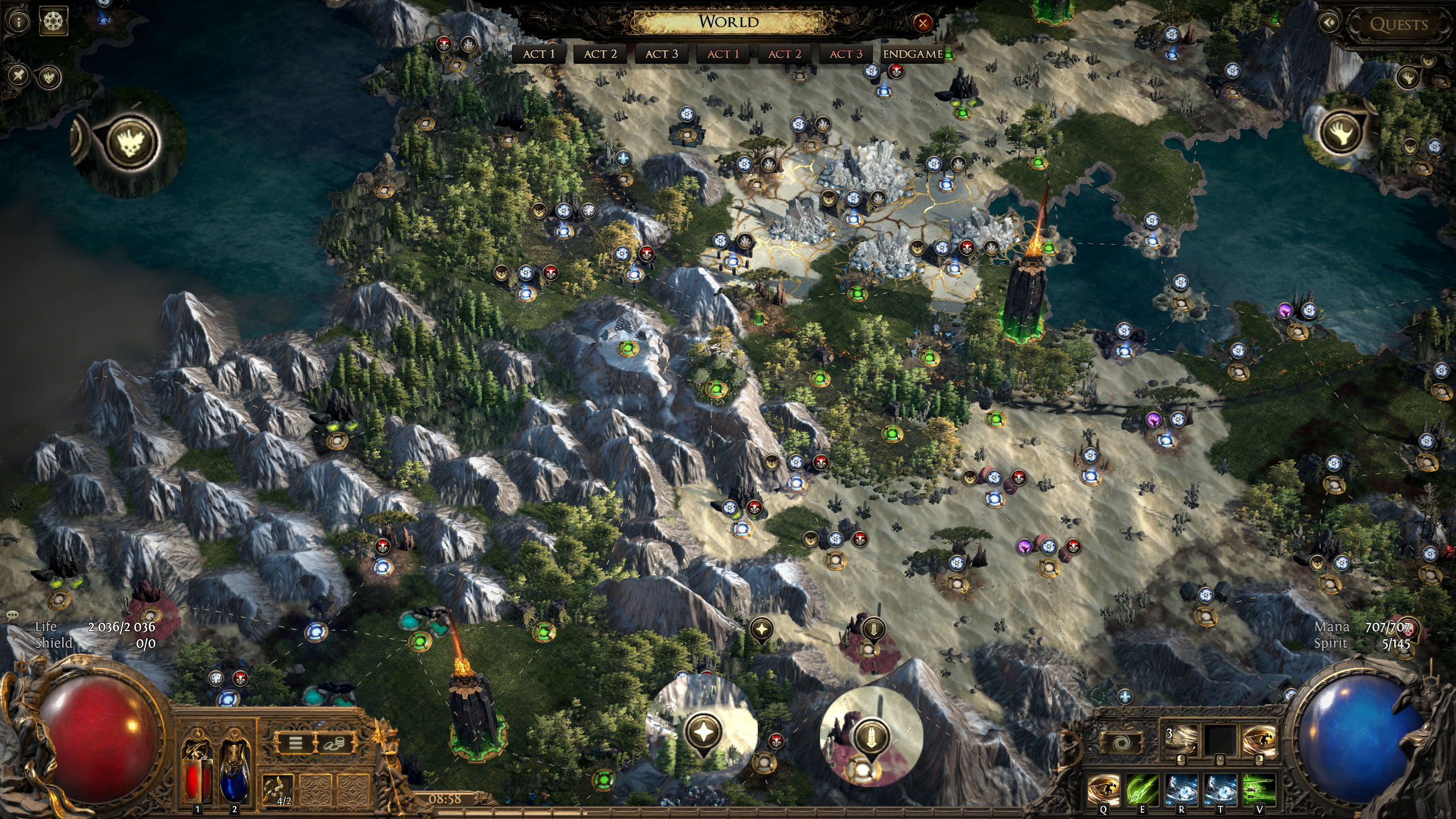
How Atlas Bookmarks appear on the edge of your Atlas
The Bookmark Tab
You can further manage all of your Atlas Bookmarks by clicking the small pin icon at the top left of your Atlas, below the "i" icon. This brings up a Bookmark management tab that allows you to do several useful things
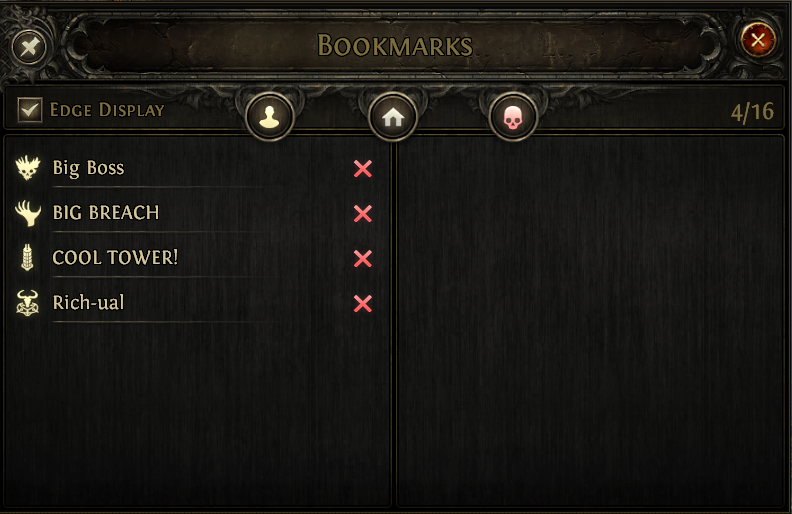
- Edge Display: Toggles the Atlas Bookmark icons that appear on the edge of your Atlas screen
- Player Icon: Instantly travels you to where the last Map your character ran
- Home Icon: Instantly travels you to the Ziggurat Refuge
- Red Skull Icon: Instantly travels you to The Burning Monolith
You can also:
- Click the name of a Bookmark to instantly travel to it
- Click the red X to delete a Bookmark
Closing
PoE 2 Atlas Bookmarks make organising and navigating your Atlas so much more comfortable. If you'd like to learn more about Path of Exile 2's endgame and general advice, check out some of these guides here:
- Atlas Passive Points and How to Get Them
- Ascendancy Buffs and Nerfs
- Expedition Crafting Guide and Tips