ROB RUN is tons of fun, as clearly shown by the 300k+ players who have already jumped in on Steam. Despite this, many players are struggling with FPS problems. But what are you supposed to do if you want your game to run well, whilst still looking good? In this guide we'll go over a quick optimization guide for potato PCs.
 Use your favourite features in-game with our Desktop App
Overview
How To Change Settings
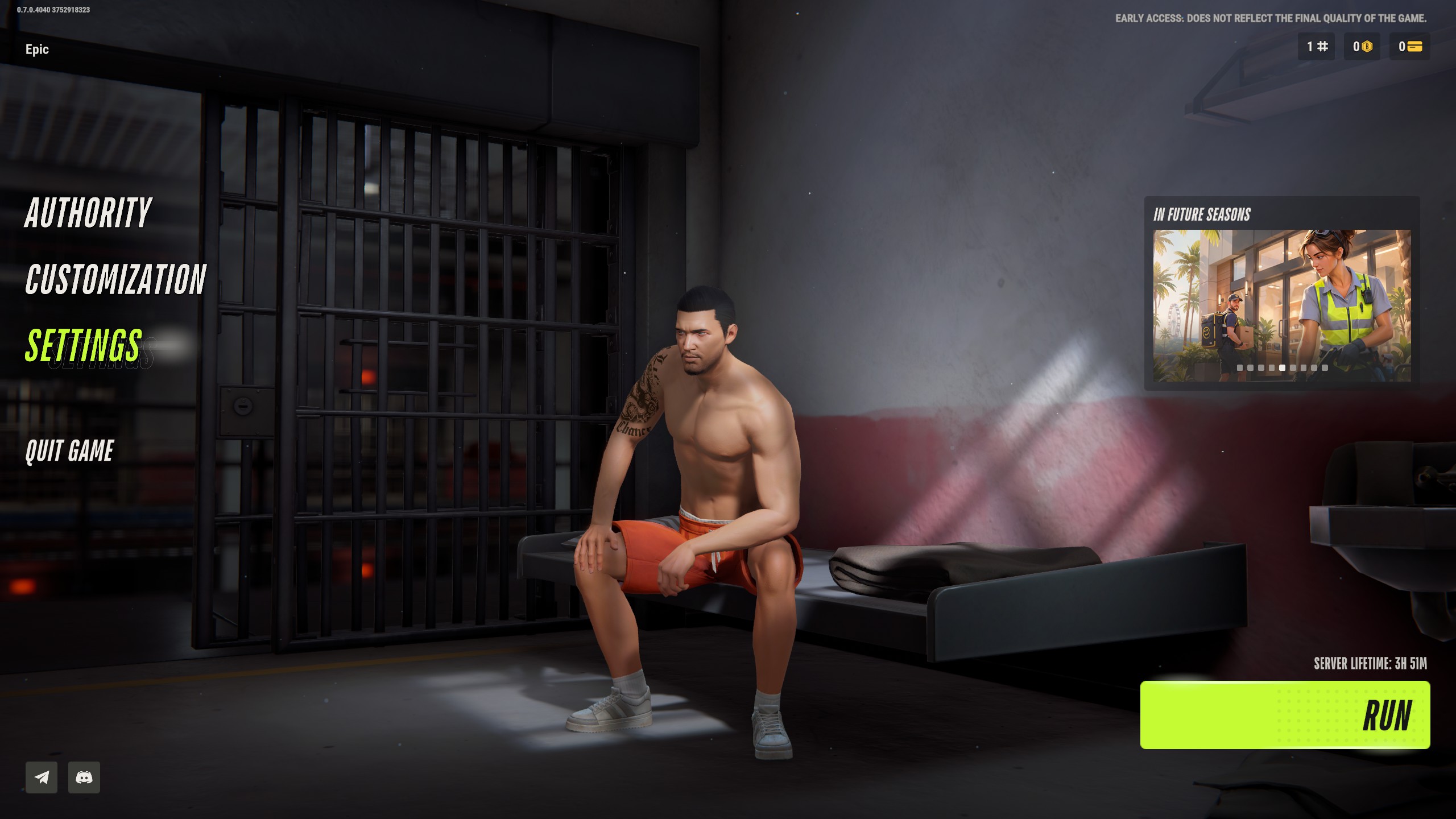
To begin changing your settings, first navigate to the Settings option from either the main menu screen, or the in-game pause menu. This will bring up a new menu with a few options we'll be clicking through to begin improving our frames.
Best Settings for High Frames
To get started, begin by setting the 'Graphics Quality' preset to Minimum. This will reduce the overall amount of settings you'll need to swap, greatly reducing the time you spen on getting higher frames. From here, we'll be adjusting a few settings to keep the game looking nice.
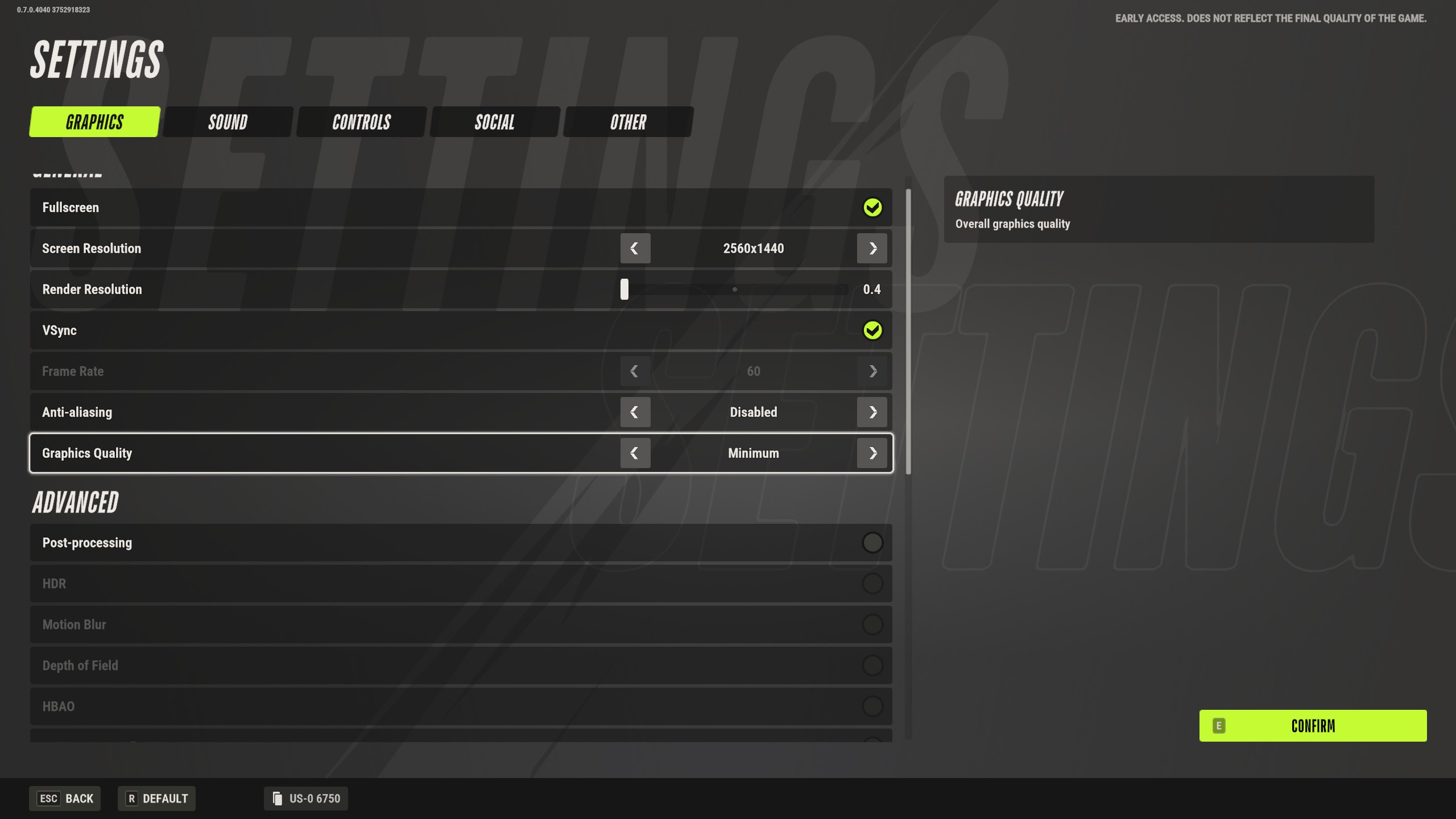
With your preset on minimum, set the following options based on the instructions below (top to bottom)
Render Resolution: 0.8
This setting changes the overall resolution the game is displayed at. In our case, we want to reduce it, but not so much that the game starts to look awful. At 0.8, we're rendering at 20% less than the standard. If you want to get more frames you can always lower this setting, but be aware that it does carry a heavy visual impact.
Anti-Aliasing: SMAA
AA is an option used to reduce edges or lines looking jagged. With it off, and combined with the above change, it will make the game look much worse than it should. With the setting set to SMAA, we'll get a boost in visual quality, without sacrificing much performance.
Shadows: Minimum Quality
While shadows can cause a lot of overhead if incorrectly set, we want ours at least on minimum to avoid the game looking totally flat. Having them at this setting won't do much at all to your AVG FPS, resulting in a clean visual boost.
Level Of Detail: 0.7
This setting doesn't cause much of a change to frames at all, so keeping it set to the lowest possible option is just going to degrade visual clarity. LOD is responsible for how detailed objects look based on distance.
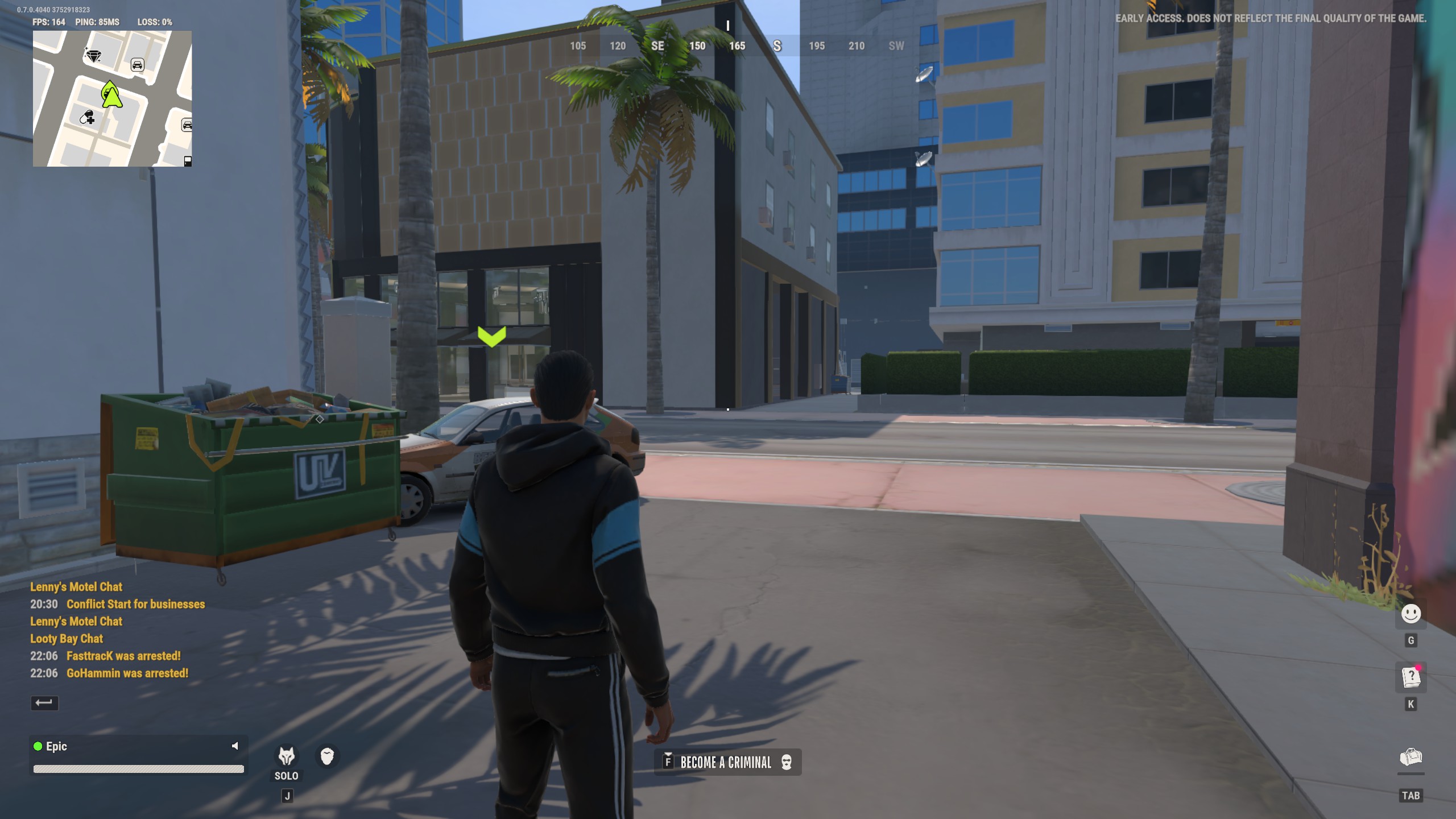
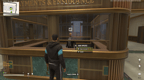
With the settings we have gone over applied, you can see how the game looks below, in addition to our framerate. If you aren't seeing the same results, consider lowering the settings mentioned further.